Qualitia Automation Studio (QAS) requires a Chrome extension to enable Recorder functionality. By default, QAS automatically installs this extension at runtime. However, in environments where automatic extension installation is restricted by security policies, you can instead manually install the extension from the Chrome Web Store.
Default Port for Communication:
4518(configurable via QAS settings)
This guide explains the installation method and provides detailed steps to whitelist the extension for specific Chrome profiles, ensuring proper functionality in controlled or multi-profile setups.
Chrome Extension Installation Options
QAS supports two methods for installing and managing the required Chrome extension:
Option 1: Runtime Local Installation (Default Approach)
In this approach, the extension is dynamically installed at runtime when users launch the Object Spy or Recorder.
🔹 Key Characteristics:
-
Automatically installed when needed.
-
No setup or configuration required by the user.
-
Automatically removed after the session ends.
Option 2: Chrome Web Store Installation with Static Port (Manual Installation)
In this method, users install the extension from the Chrome Web Store and configure it manually in QAS using a predefined static port.
🔹 Key Characteristics:
-
The extension remains persistently installed across sessions.
-
Requires user setup within QAS, including port and profile configuration.
-
Recommended for secure environments or CI/CD pipelines.
-
You can manage and control the extension version.
Ensure the communication port (default: 4518) is open and accessible.
Whitelisting the Extension for a Specific Chrome Profile
When using multiple Chrome profiles (e.g., Default, Test Profile 3), ensure the extension is installed in the target profile and correctly configured in QAS.
🔧 Steps to Whitelist the Extension
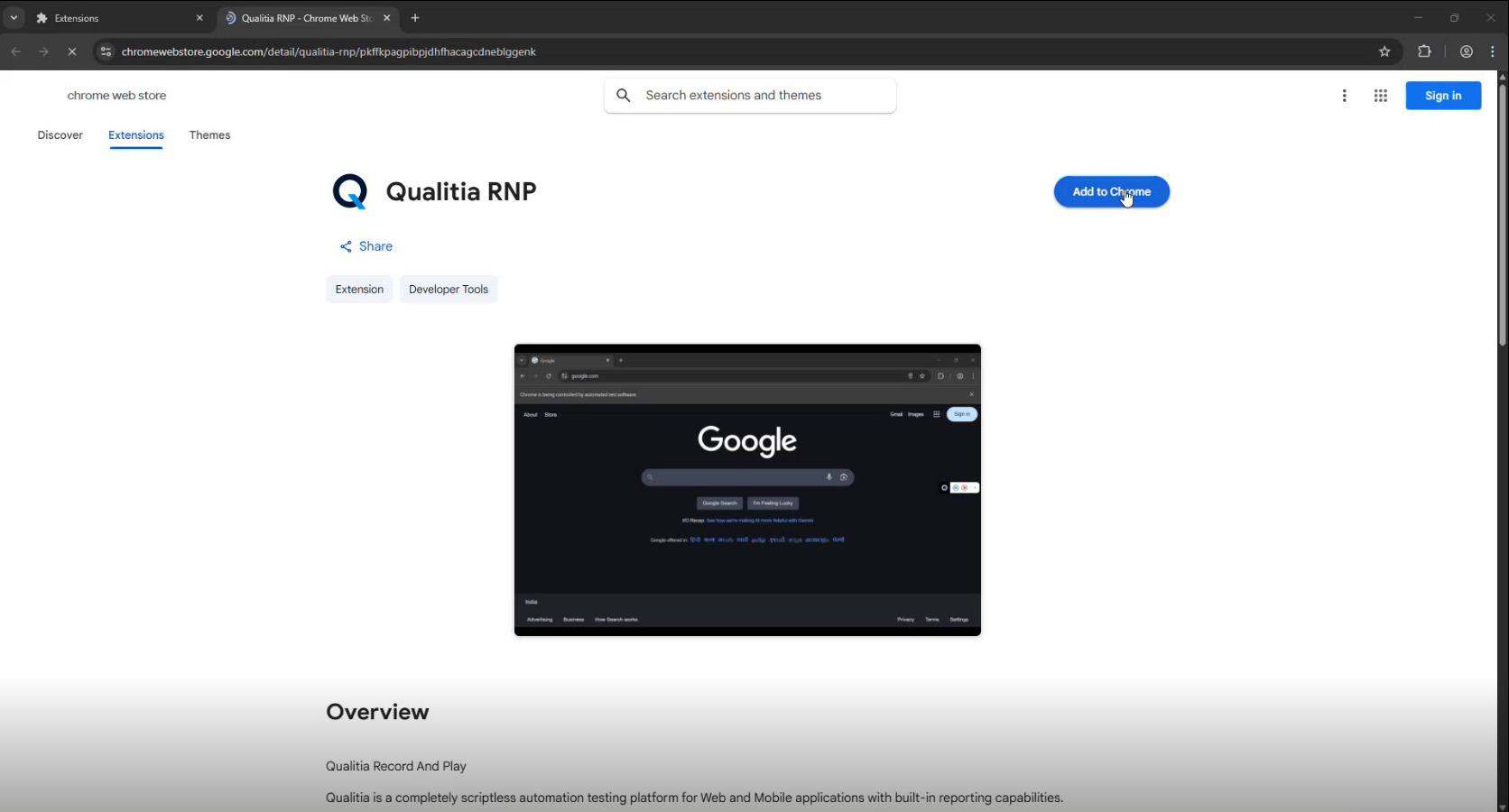
1. Install the Extension in the Required Profile
-
Open Chrome and switch to or create the required profile.
-
Install the Qualitia Recorder extension from the Chrome Web Store.
2. Identify the Profile Folder Name
-
Inside the
User Datafolder, locate the fileLocal State. -
Open
Local Statein a text/code editor and search for your Crome profile name (e.g., Sanket)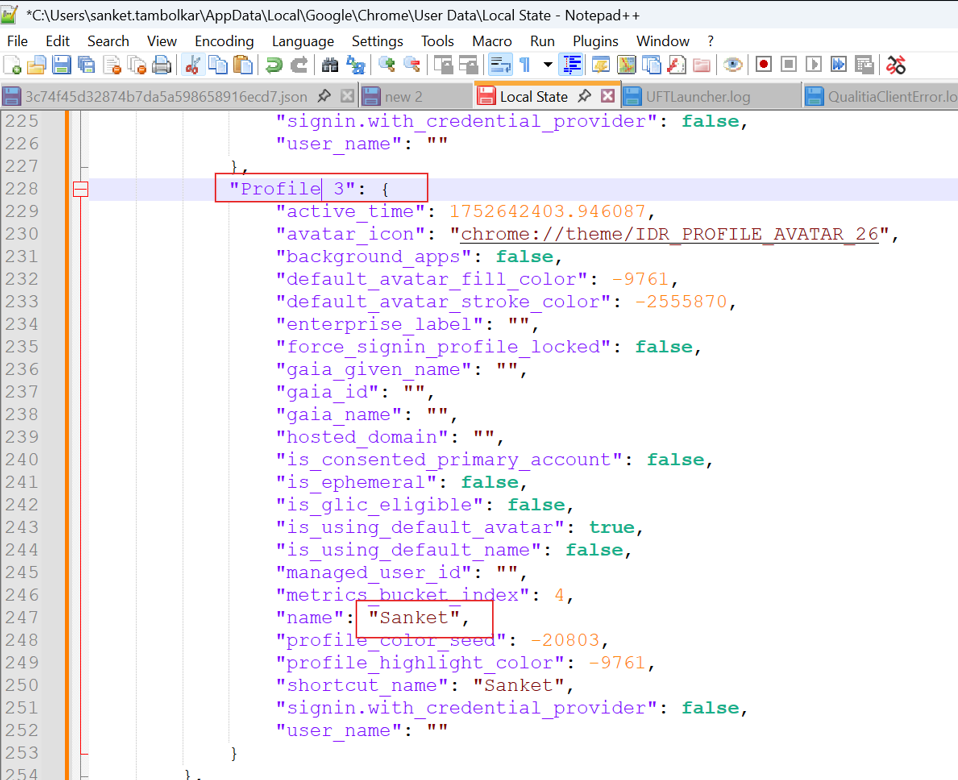
-
Note the corresponding internal profile name (e.g.,
Profile 3).
3. Copy Chrome User Data to a Non-System Folder
-
Navigate to the Chrome user data folder:
C:\Users\<YourUsername>\AppData\Local\Google\Chrome\User Data -
Copy the Profile folder to a non-system location:
D:\UserData\Profile 3
This avoids permission issues when referencing system folders.
4. Configure the Profile in Qualitia
-
Log in to QAS - Client.
-
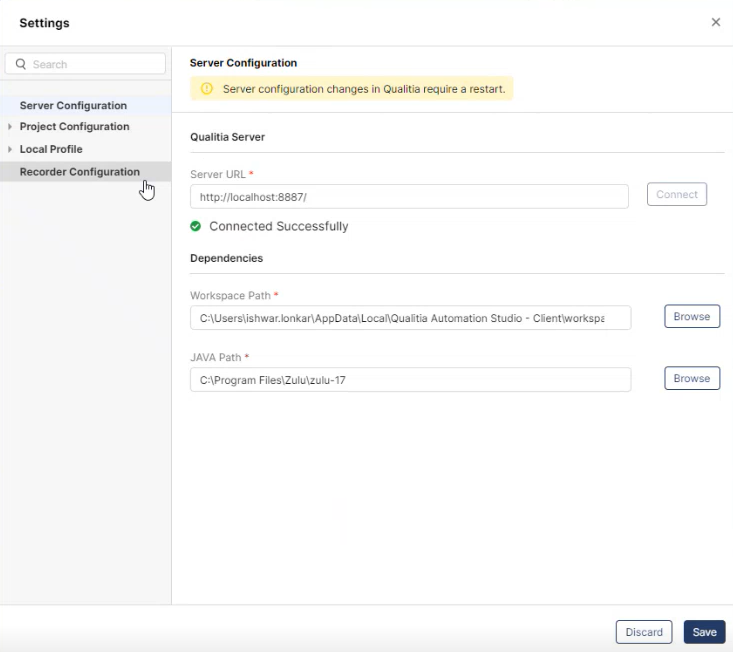
Access Settings from left navigation.
-
Click Recorder Configuration to open the Recorder Configuration settings screen.
-
On the Recorder Configuration screen, update the following fields:
-
Web Recorder Port: This field contains a prefilled port number 4518. You can change the port number if needed.
-
User Data Directory: Click Browse next to User Data Directory and select
D:\UserData. -
Profile Directory: Enter the internal profile name identified earlier (e.g.,
Profile 3).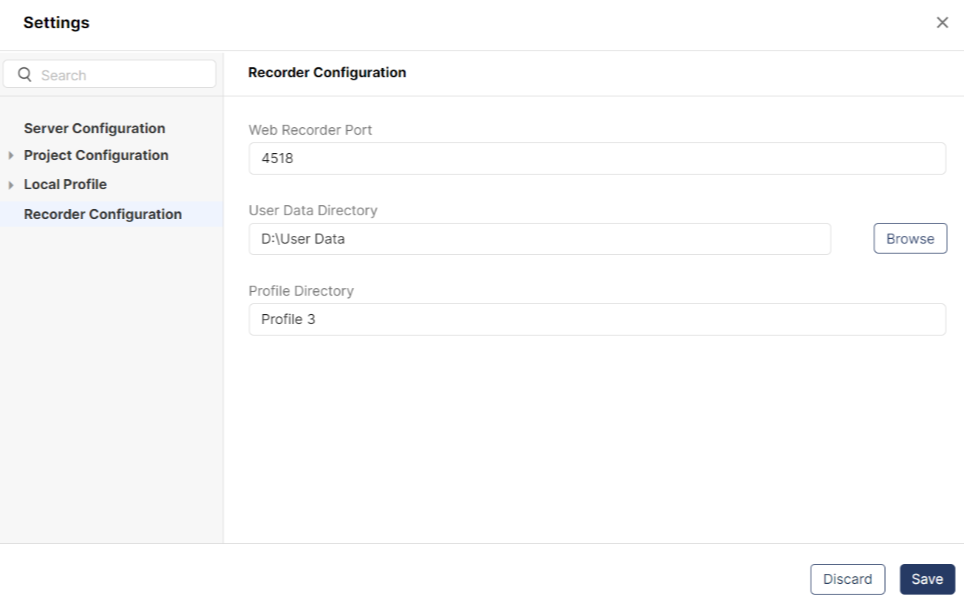
-
-
Click Save to apply changes; otherwise, click Discard.
5. Launch Recorder and Connect to Port
-
Launch Recorder from Qualitia - Client.
-
Chrome will launch using the configured profile.
-
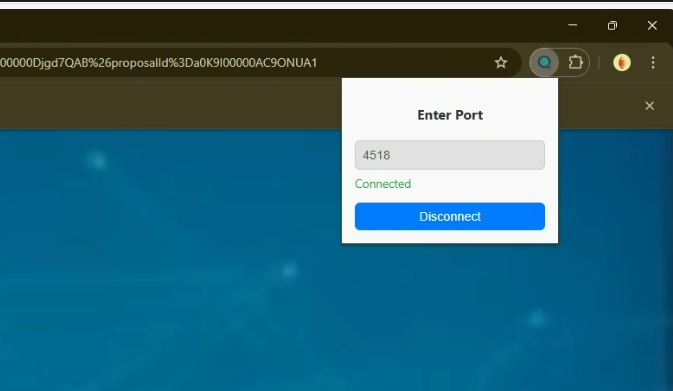
Manually click the Qualitia extension icon in the Chrome toolbar.
-
In the popup:
-
Enter the configured port number (default: 4518).
-
Click Connect to Port.
-
✅ Once connected, the recorder strap will appear, and the browser is ready for recording.
Updating Crome Profile Path for Execution
-
Log in to QAS - Client.
-
Access Settings from left navigation.
-
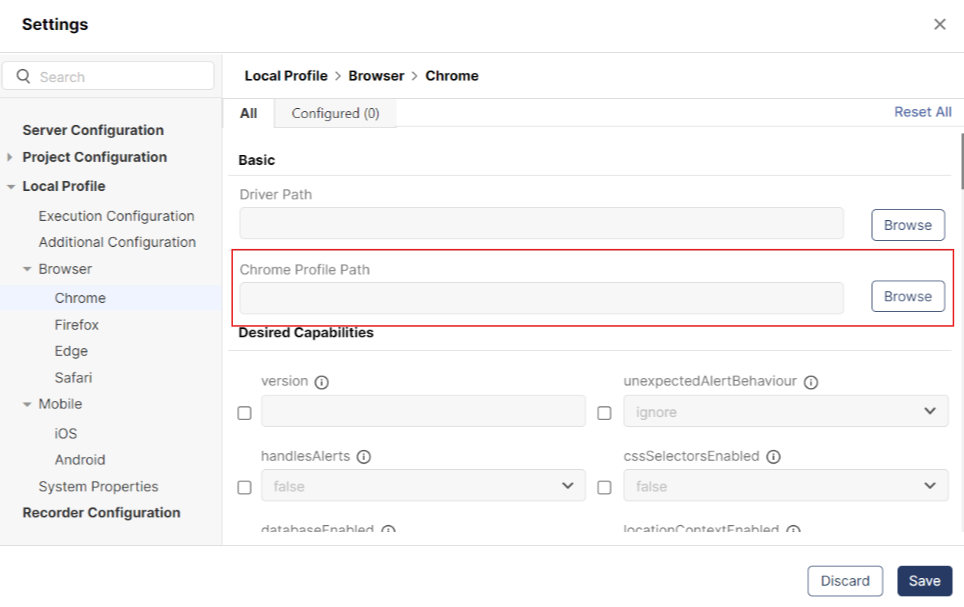
Go to Local Profile > Browser > Crome.
-
Add the Crome Profile Path as:
D:\UserData\Test Profile 3