
Importing Salesforce Objects in Qualitia allows you to import Salesforce metadata—such as objects, fields, profiles, and record types—into the Salesforce Repository. This enables quick setup for test automation by providing accurate, real-time visibility of Salesforce elements, ensuring tests are built on the latest application structure.
Establishing Connection
-
Once a connection is established, the corresponding organization name will appear under the Salesforce Repository.
-
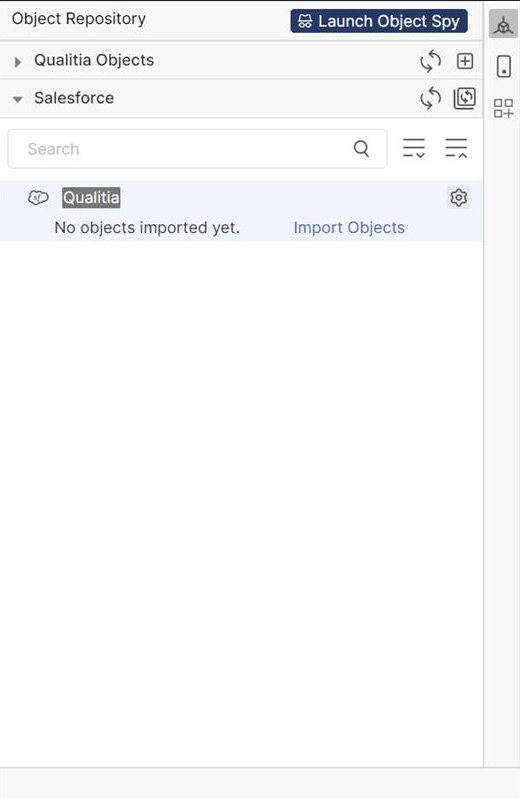
Under the organization name, the Import button will be visible, with the label: "No Objects Imported".
-
Click Import Objects to open the Import Salesforce Objects window.
-
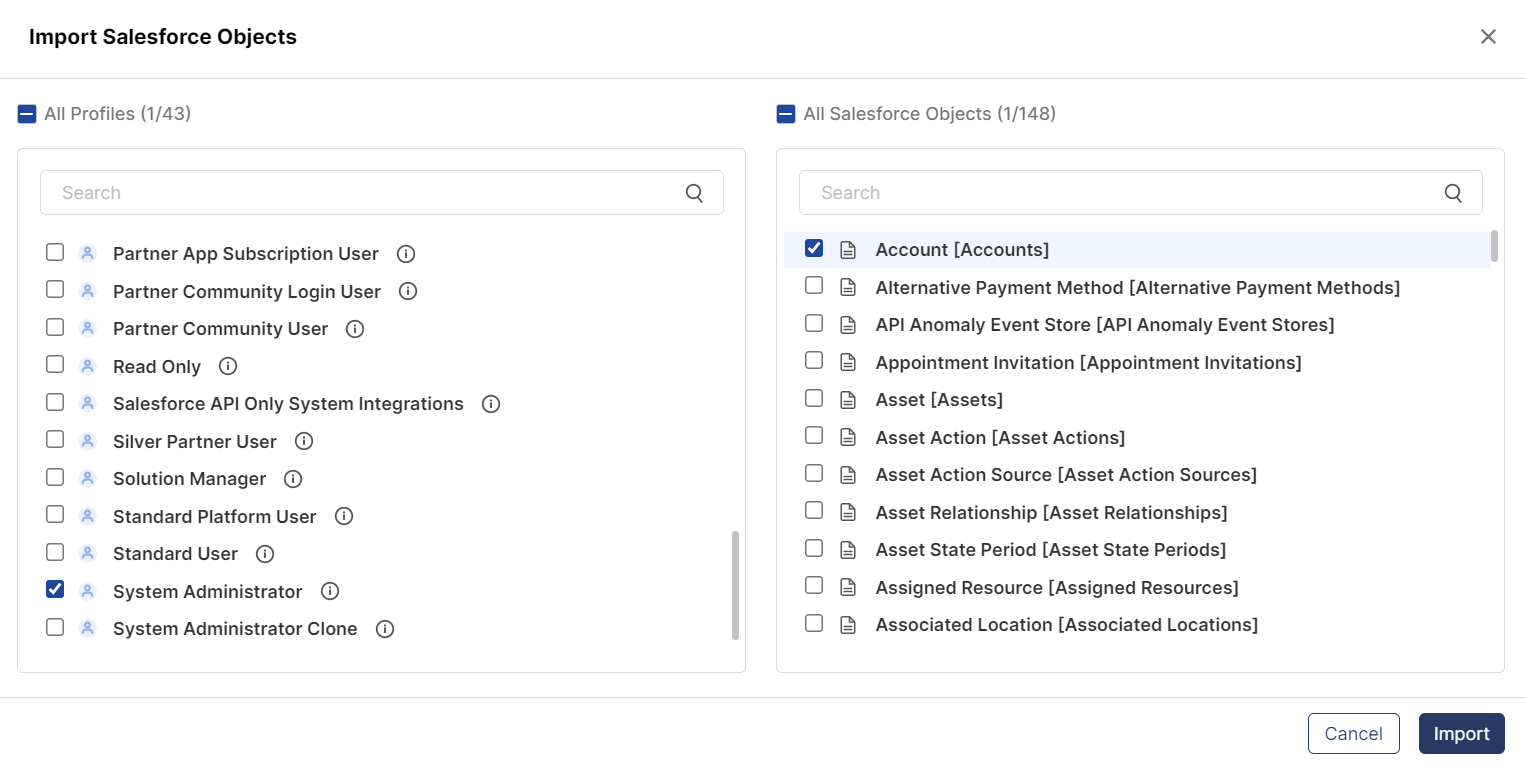
On the Import Salesforce Objects window, select profiles and objects you want to import.
-
Select profile: In the left pane, choose either:
-
All Profiles – to import objects for all available profiles, or
-
Individual Profiles – to import objects for specific profiles only.
Note: You can scroll or use the search bar to find specific profiles.
Hover over the ⓘ icon next to any profile to see the list of connections where that profile is used.
-
-
Select objects: In the Right pane, choose either:
-
All Salesforce Objects: Import all available Salesforce objects for the selected profiles.
-
Individual Objects: Import only specific Salesforce objects relevant to the selected profiles.
-
-
-
After selecting the desired profiles and objects, click Import.
-
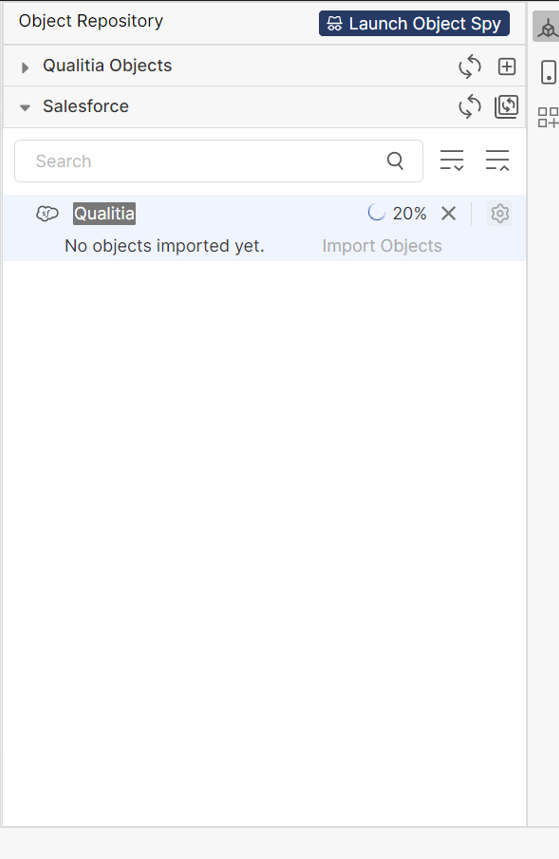
A loading spinner will appear next to the corresponding organization name - Importing Objects….
-
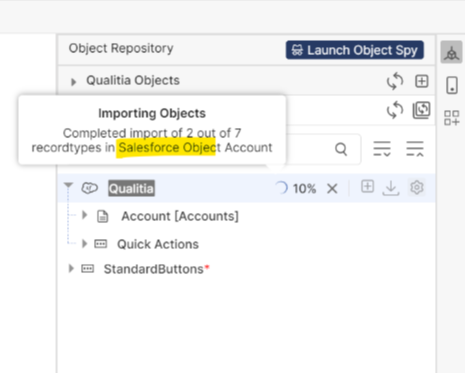
Hover over the spinner to view the current import status.
-
Click Cancel Import to cancel the ongoing import.
-
Once the import process is complete, a list of imported objects appears under the organization name.
Note: Standard Buttons and Quick Actions are imported along with the Salesforce Objects.
Only one set of Standard Buttons and one set of Quick Actions will be available per org, regardless of the number of connections.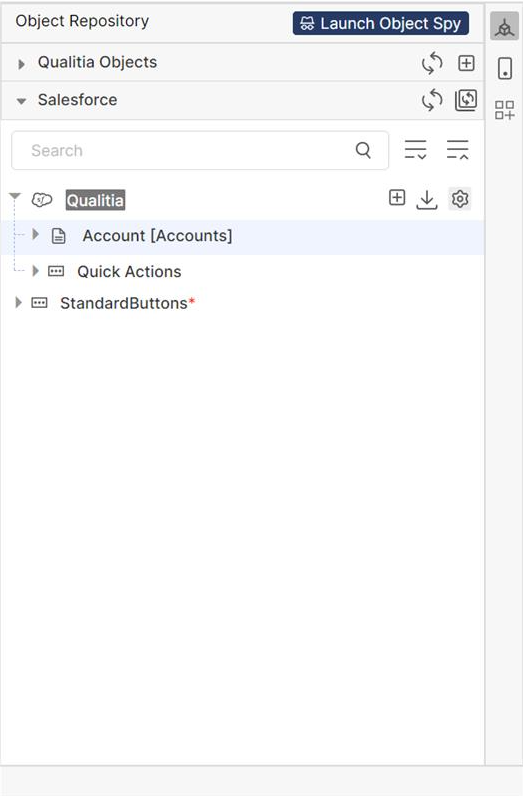
-
When you expand Create to see the list of objects, you will see loading… as it will take some time to load the list.
-
The mandatory fields will be marked with an asterisk.
-
You can import multiple objects at a time. Select all the objects and click Import.
-
You won’t be able to import the already imported objects, they will be in disabled form.
-
All other tabs and features stay accessible during the import.
-
You can also start imports for other organizations simultaneously.
-
If a test case or task is reused in another project, the full organization hierarchy is also reused.
-
Cancelling an import midway will cancel the entire process.
-
Tabs used by multiple profiles will show field ownership across those profiles.
Locked Objects During Reimport
-
If objects are locked by another user, a popup titled "Locked Objects" appears.
-
A message will say: "Some objects are locked and cannot be imported."
-
The popup lists the locked objects and the users who locked them.
-
You will be asked: "Would you like to continue?"
-
Choose Cancel to exit or Import to proceed with unlocked objects.
Handling Expired Connections
-
If a connection is expired, an ⓘ icon appears next to the organization name.
-
Hover to see a tooltip listing failed connections.
-
Import is still allowed for non-expired connections.
-
If you attempt to import with expired connections:
-
A message in red appears at the footer: "Failed to connect with the below listed connections"
-
If all connections are expired, a popup appears: "Connection Issue"
-
-
If all connections are deleted:
-
An ⓘ icon appears near the org name with tooltip: "Failed to connect with respective connection"
-
Import, Create API, and Settings options are disabled.
-
-
When you click Cancel during an import, the system does not immediately stop the operation. Instead, it completes the creation of JSONs and pushes any artifacts that were successfully imported up to that point. As a result, the progress bar may continue briefly, and toast messages will still appear to reflect the partial progress. This ensures that the time spent before cancellation is not lost.
-
When importing or recording a container field in a Salesforce (SFDC) project, the object may be incorrectly captured as a web object instead of a Salesforce-specific type. This causes execution to fail for those objects.
Workaround: Manually update the locator type in the Object Repository to the appropriate Salesforce type and re-execute.
When you create a new connection using the Salesforce application and try to import objects, you will see additional object entries under the Import Object section.
Multi-locator Support for Imported Object
QAS provides multi-locator support for the imported objects. Multiple locators for an object allow you to run a successful execution without interruption.
There are three locator types that QAS support for imported SFDC objects, which include SFDC:LABEL, SFDC:PARENT_LABEL, and SFDC:NAME. You can drag and drop the locator type field and rearrange the sequence as per your preference.
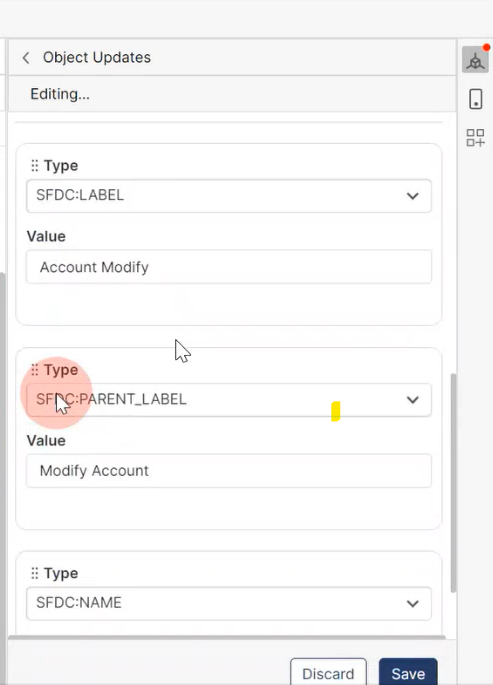
You can also edit the text under Value field if needed.