
Qualitia Automation Studio (QAS) now includes REST API capabilities, enabling seamless integration and communication with various applications and systems. The REST API functionality allows users to automate interactions, manage test cases, retrieve test execution data, and integrate QAS with CI/CD pipelines, test management tools, and other third-party platforms. This advancement significantly boosts QAS's interoperability, making it a powerful choice for modern, scalable testing environments.
📚Prerequisites
-
The Qualitia Automation Studio (QAS) application must be installed and accessible.
-
At least one Salesforce project should be created.
-
The logged-in user must have test case creation access.
-
A connection must be established between Salesforce and Qualitia.
-
Rest API objects must be created.
Common HTTP methods:
-
GET: Retrieves data from the server. Used to request and fetch specific information, such as reading a file, document, or other data, without modifying it.
-
POST: Sends data to the server to create a new resource. Commonly used to submit data, such as form entries, which the server processes to generate a new item.
-
PUT: Updates or replaces an existing resource on the server with the provided data. It usually requires all data for the resource, overwriting the existing content.
-
PATCH: Partially updates an existing resource with only the data specified in the request. Unlike PUT, it modifies only specific fields rather than replacing the entire resource.
-
DELETE: Removes a specified resource from the server, permanently deleting it.
Create Rest API Object
Create Rest API Object Through Object Repository
To create SFDC API object follow the below steps:
-
Go to Object Repository.
-
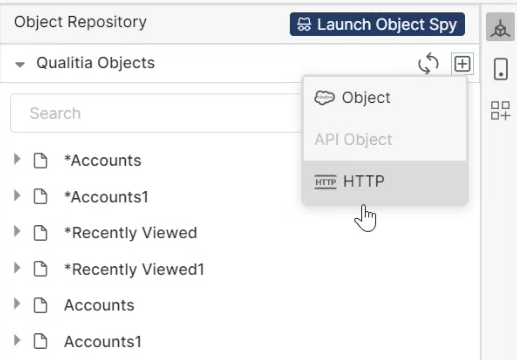
Click the + icon (Create Object) and select HTTP option for the connection as shown in the screenshot.
-
Clicking HTTP will open the Create HTTP API Object screen.
-
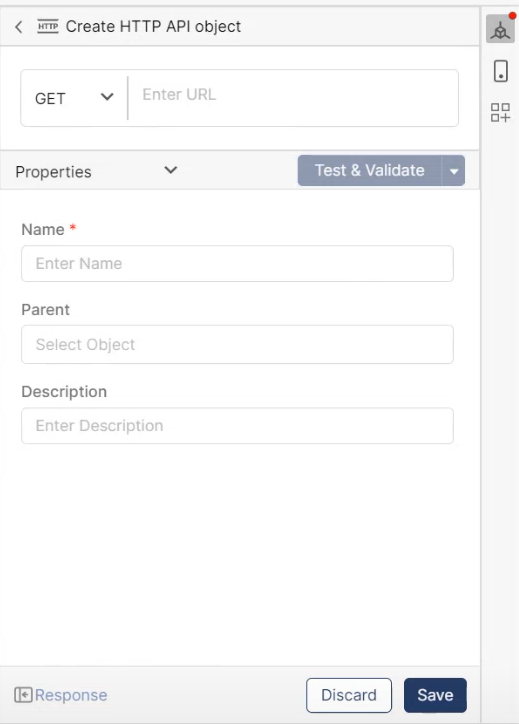
On the Create HTTP API Object screen, enter the following details:
-
Properties
-
Select the HTTP method using the dropdown. You can select GET, POST, PUT, PATCH, and DELETE.
-
POST- add new data -
PUT- replace existing data -
PATCH- update some existing data fields -
DELETE- delete existing data
-
-
Enter URL: Enter the URL of the API.
-
Name: Enter the API name. This is a mandatory field.
-
Parent: Select the parent form the dropdown under which you want to create the object. You will see list of all the parent objects here.
-
Description: Add desired description for the API up to 300 characters.
-
-
Parameters: Provide the parameters for the URL. For example,
-
Name
-
Value
Note: When you enter the parameters, these values will update everywhere they're used.
-
-
Authorization: There are three type of authorization you can select from Basic, Bearer, and OAuth.
-
Basic: Enter the Username and Password required to access the API.
-
Bearer: Enter the Bearer token.
-
OAuth: Enter the following fields:
-
Grant Type: A dropdown list of options. This will depend on the API service provider requirements. You can select Password Credentials or Client Credentials.
-
To use password grant type, enter your API provider's Access Token URL, together with the Client ID, Client Secret, Username, Password, Scope and Client Authantication.
-
Access Token URL: The provider's authentication server, to exchange an authorization code for an access token.
-
Client ID: The ID for your client application registered with the API provider.
-
Client Secret: The client secret given to you by the API provider.
-
User Name: The registered user name to log in to the API endpoint.
-
Password: The password to log in to the API endpoint.
-
Scope: The scope of access you are requesting.
-
Client Authentication: Select Send a Basic Auth Header or Send client credentials in body.
-
-
-
-
Headers: When creating a REST API object, default request headers will be auto generated. The default headers are:
-
User-Agent
-
Accept
-
Connection
-
The headers will get enabled according to the body form. For example, if JSON format is used for a body form, then header content-type should be selected as Application/JSON.
-
You won’t be able to delete headers that are populated automatically. You can unselect them if you don’t want to use but cannot delete.
-
-
Body: The Body tab allows you to define the data to be sent with a request. It supports various types of data to match your API requirements. Body data is commonly used with PUT, POST, and PATCH requests to update or create resources.
-
JSON: Choose the format in which you want to send the data. Click the dropdown next to JSON and select JSON, XML, or Text based on your requirement. Qualitia enables syntax-highlighting and appending the relevant headers to your request.
-
Form: Form data enables you to send key-value pairs and specify the content type. You can select MultiPart Form or URL Encoding.
-
File Uploaded: Upload a file by clicking Upload File.
-
-
Cookies: Add, view, edit or delete the cookies within API sessions. For more details, refer Rest API | Add Cookies in the API.
-
Validation Sets: The Validation Sets tab allows you to create a validation rule for an object.
-
When no Validation Rule exist, you are prompted to Create a validation set.
-
You can also click + Create Validation Set from the top-right corner of the tabular section.
-
Clicking Create will open a Create Validation Set window with the following fields:
-
Name: Enter an intuitive name for the validation set that is easy to recognize.
Maximum length permitted is 300 characters including spaces. -
Description: A brief description about the suite.
-
-
Click Save to proceed; otherwise, click Cancel.
-
You can now add validation rules under the Validation Set.
-
Click Add Validation Rule from the validation set you created.
-
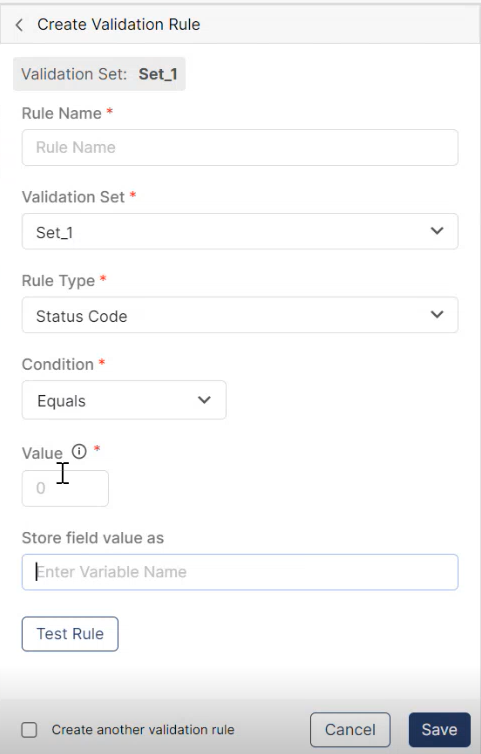
Clicking Add Validation Rule will open a Create Validation Rule window with the following fields:
-
Rule Name: Enter an intuitive name for the validation rule that is easy to recognize.
Maximum length permitted is 300 characters including spaces. -
Rule Type: You can select one of the three rule types.
-
Status Code: Select Status Code and provide the Expected Status Code to validate against it.
-
Condition: Select one of the three conditions - Equals, Not Equals, and Between.
-
Value: Provide the value to validated against.
-
Store field value as: Here you can store the field value.
-
-
Response Time: Select Response Time and enter the Response Time Witnin to get the expected response in time. This value should be in milliseconds.
-
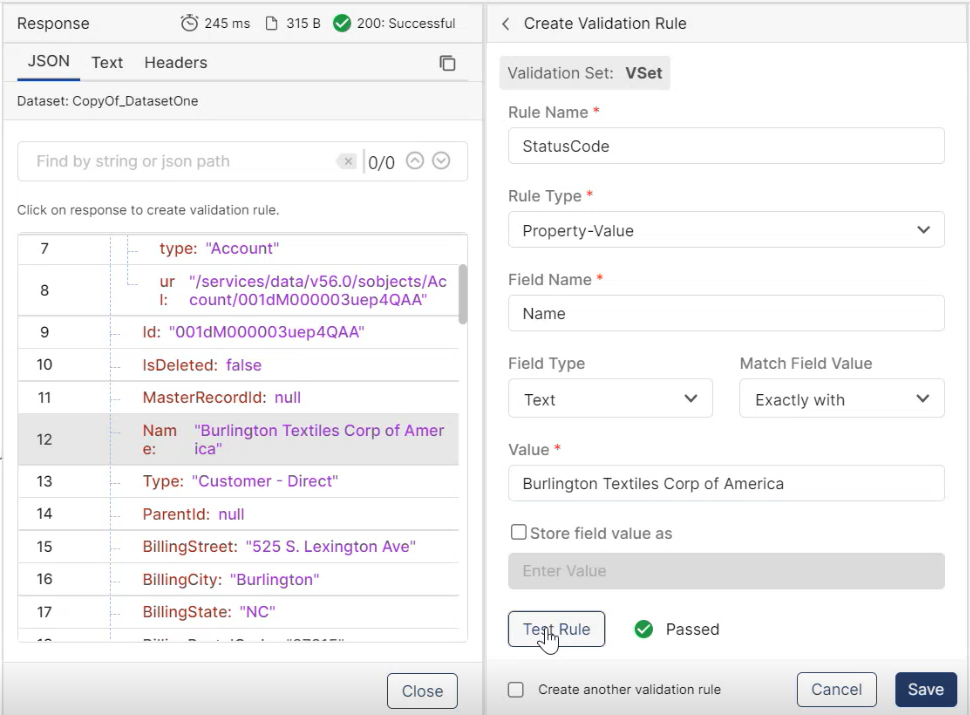
Property-Value: Selecting Property-Value will open few more fields:
-
Field Name: Enter the field name that is available for the object.
-
Field Type: Select the field type from the dropdown, Text, Boolean, or Integer.
-
Match Field Value: Select Exact Match or Contains from the dropdown as per your requirement. Exact Match will look for the same field value provided.
-
Value: Enter the field value you want to be in your response.
-
Select the check box Store field value as if you want to store the response as a Key.
-
-
-
-
Click Test Rule to validate the created rules.
-
-
-
-
Once you select the method and enter the URL, the Test & Validate button will be enabled.
-
Click Test & Validate, it will open a Response window. The Response window includes:
-
Response time in milliseconds.
-
Size of the endpoint.
-
Status code, three-digit codes that indicate the outcome of an API request. For more details, refer HTTP Status Codes in Qualitia REST API - Help Center - Confluence.
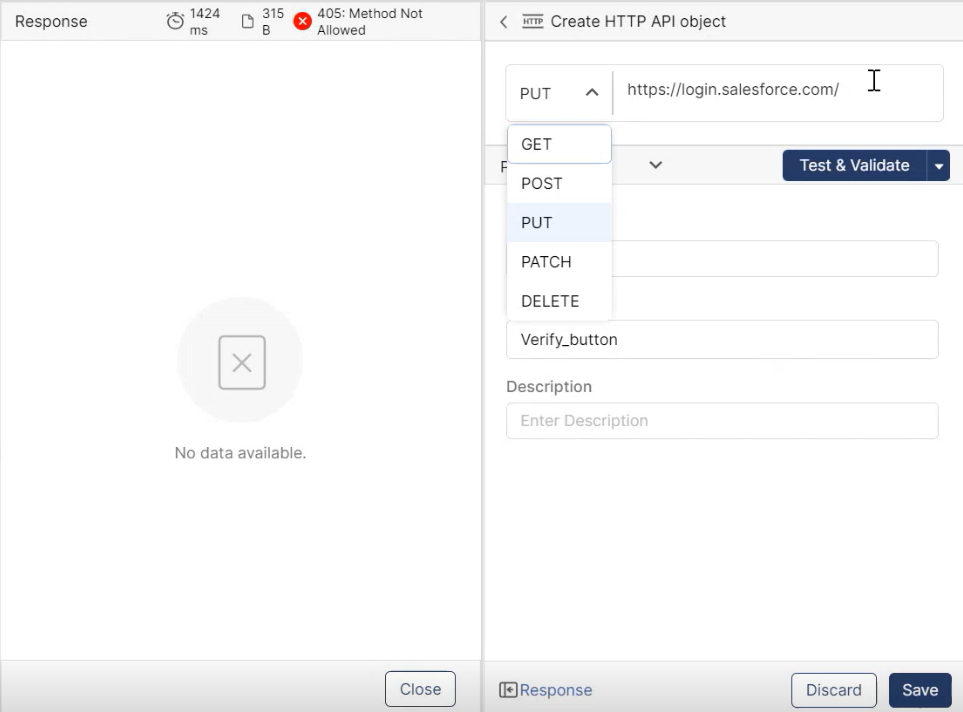
Note: The Response hyperlink at the bottom of the Create HTTP API Object window get enabled once the URL is tested & validated.
-
-
Click Save to save the changes; otherwise, click Discard.
-
Request Body Details in Execution Report: The Qualitia execution report now includes details of the request body. This enhancement helps users validate that the correct request body is being passed and assists in debugging and validation.
Enabling URL Encoding from the Body
Qualitia allows you to use the URL encoded form of data in the body section where user can send the body data in encoded form. URL encoding helps secure the data in the URL.
To enable URL encoding follow the below steps:
-
Create a REST API Object from the object tool kit.
-
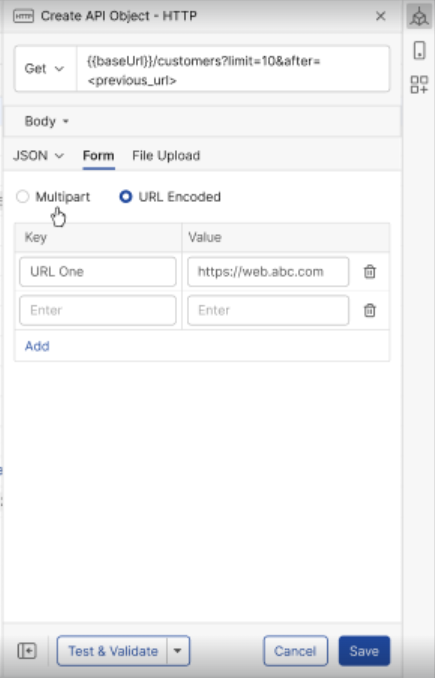
On the Create API Object- HTTP window, go to Body section.
-
You will see JSON, Form, and File Upload under Body.
-
Go to Form and select URL Encoded to enable the URL encoding.
-
Click Save to save the changes.
Manage Cookies in API
Qualitia now allows users to seamlessly manage cookies within API sessions. This feature enhances session personalization, security, and tracking by enabling users to add, view, edit, and delete cookies. Cookies are integral for maintaining user preferences, authentication, and interaction tracking in web applications and APIs. You can add cookies for Salesforce, Web, and Mobile projects.
Steps for Managing Cookies
Adding Cookies
-
Go to the API session.
-
Click Create to add a cookie for the first time.
-
Or click the + icon and enter the following fields.
-
Cookie Name: Specify the cookie’s name. Maximum 50 characters.
Note: The cookie names are case-sensitive. For example, "CookieOne" and "cookieone" would be considered two different cookies. -
Cookie Value: Provide the value for the cookie. Maximum 3000 characters.
-
-
Click Save to save the cookie; else, click Cancel.
-
If fields are empty, an error message appears: "This field cannot be empty."
-
Duplicate names will prompt: "A cookie with this name already exists."
Editing Cookies
-
Go to the cookie list, hover over the cookie you what to edit to see the Edit option.
-
Click Edit to open a pre-filled form with the current name and value.
-
Modify the details and click Save to update the cookie.
-
Ensure the updated name and value meet character limits and are unique.
Deleting Cookies
-
Go to the cookie list, hover over the cookie you what to edit to see the Delete option.
-
Click Delete to remove the cookie from the table. The cookie count is updated automatically after deletion.
Adding Validation Rules in Qualitia
In Qualitia, validation rules ensure that test automation accurately verifies expected outcomes. Users can create validation rules to check various conditions, such as JSON Path existence, Header, XPath existence, and other response validations. These rules help improve test reliability by automating checks against expected values.
Steps for Adding a Validation Rule for ‘JSON Path Existence’
This rule allows users to verify the existence of a JSON Path in the API response.
-
Open the Response tab or the Validation Set screen.
-
Click Add Validation Rule to open the form for creating a new rule.
-
Update the following Rule Details:
-
Rule Name: Enter a name for the rule. This is a mandatory field.
-
Validation Set: Select an existing validation set from the dropdown.
-
If no validation set exists, a default set named Validation Set One will be created and selected.
-
-
Rule Type: Select JSON Path Existence from the dropdown.
-
JSON Path: Provide the JSON Path to validate. This is a mandatory field.
-
Store JSON Path: Optionally, store the JSON Path value in an output variable for reuse.
-
-
Click Test Rule to validate whether the JSON Path exists in the API response.
-
Click Save to save the validation rule; else, click Cancel.
The stored JSON Path value can be used as a dynamic URL
When the provided JSON contains an array, and the user matches a value from the array, the entire array should be treated as a string. The array should be enclosed in square bracket "]".
Example:
[{"Qualitia", "zensoft"}]
-
Each element of above array should be considered as string.
-
If you apply a condition like Ends With, you need to specify the exact string or character you expect, e.g.,
"]"in the value field for the rule to match correctly.
This approach ensures precise validation of array values in JSON responses.
Steps for Adding a Validation Rule for ‘JSON Path and Value Match’
This rule allows users to verify both the JSON Path existence and its value in the API response.
-
Open the Response tab or the Validation Set screen.
-
Click Add Validation Rule to open the form for creating a new rule.
-
Update the following Rule Details:
-
Rule Name: Enter a name for the rule. This is a mandatory field.
-
Validation Set: Select an existing validation set from the dropdown.
-
If no validation set exists, a default set named Validation Set One will be created and selected.
-
-
Rule Type: Select JSON Path and Value Match from the dropdown.
-
JSON Path: Provide the JSON Path to validate. This is a mandatory field.
-
Match Field Value: Select one of the following conditions for matching the JSON Path value:
-
Contains: Checks if the value contains the specified string.
-
Doesn’t Contain: Checks if the value doesn’t contain the specified string.
-
Equals: Checks if the value exactly matches the specified string.
-
Starts With: Checks if the value starts with the specified string.
-
Ends With: Checks if the value ends with the specified string.
-
-
Value: Enter the value to match. This is a mandatory field.
-
Case Sensitivity: Enable the checkbox to make the comparison case-sensitive, if required.
-
-
Click the Test Rule button to validate both the JSON Path and its value in the API response.
-
Save: Click the Save button to save the validation rule; else, click Cancel.
General Validations and Errors
-
If any mandatory field is left empty, an error message is displayed:
-
Field Name cannot be empty.
-
-
For duplicate JSON Paths, an error message is displayed:
-
Duplicate JSON Path rules are not allowed.
-
-
On clicking Test Rule, validation results will display with details of success or failure.
Viewing Test Output
-
After testing, click View Output to see the response details for the JSON Path validation.
-
JSON Path validation rules work only on JSON-based responses.
-
Added or updated rules are visible in the Validation Set page.
-
Case sensitivity for JSON Path and value matching can be enabled or disabled based on the checkbox selection.
Validation Rule to Validate HTTP Response Headers
This section outlines the capabilities, prerequisites, and steps for creating validation rules to validate HTTP response headers in Qualitia. Two types of validation rules are supported: Header Existence and Header and Value Match.
Steps to Create a Header Existence Rule
-
Navigate to the Response Tab or the Validation Rule Tab.
-
Click Add Validation Rule to open the Create Validation Rule screen.
-
Fill in the following fields:
-
Validation Set (Mandatory): Select or create a validation set. If none exist, a default set (Validation Set One) is created.
-
Rule Name (Mandatory): Enter a unique name for the rule.
-
Rule Type (Mandatory): Select Header Existence.
-
Header Name (Mandatory): Enter the name of the header to validate.
-
-
Use the Store Header option to save the header name into a variable for reuse.
-
Click Test Rule to verify if the specified header exists in the response.
-
Uncheck Run Test Again to verify header in the existing test result or keep it checked to run the test again and verify the result. By default, the Run Test Again option will be checked.
-
Click Save to save the rule; else, click Cancel.
-
By default, the Run Test Again option will be checked.
-
The Run Test Again option will only be enabled if the rule has not been tested and a response is received after clicking Test Rule. If no response is received, the option will be disabled.
Steps to Create a Header and Value Match Rule
-
Navigate to the Response Tab or the Validation Rule Tab.
-
Click Add Validation Rule button to open the rule creation form.
-
Fill in the following fields:
-
Validation Set (Mandatory): Select or create a validation set.
-
Rule Name (Mandatory): Enter a unique name for the rule.
-
Rule Type (Mandatory): Select Header and Value Match.
-
Header Name (Mandatory): Specify the header to validate.
-
Match Field Value: Choose from the following conditions:
-
Contains
-
Doesn’t Contain
-
Equals
-
Starts With
-
Ends With
-
-
Value (Mandatory): Enter the expected value for the header based on the selected condition.
-
Case Sensitive (Optional): Check this box if the validation should be case-sensitive.
-
-
Click Test Rule to verify if the header exists and its value matches the given condition. Feedback will indicate whether the test passed or failed.
-
Uncheck Run Test Again to verify header in the existing test result OR keep it checked to run the test again and verify the result. By default, the Run Test Again option will be checked.
-
Click Save to save the rule; else, click Cancel.
Common Fields for Validation Rules
|
Field |
Description |
Mandatory |
|---|---|---|
|
Rule Name |
A unique identifier for the validation rule. |
Yes |
|
Validation Set |
A grouping of validation rules. Defaults to "Validation Set One" if none exist. |
Yes |
|
Rule Type |
Specifies the type of validation: Header Existence or Header and Value Match. |
Yes |
|
Header Name |
The name of the header being validated. |
Yes |
|
Condition |
(For Header and Value Match) A condition to test the header value. |
No |
|
Value |
(For Header and Value Match) The expected value for the header. |
Yes |
Validation Rule to Validate API Response in XML Format
Qualitia now supports validation rules for API responses in XML format:
-
XPath Existence: Confirms the presence of a specified XPath in the response.
-
XPath and Value Match: Verifies that a specified XPath exists, and its corresponding value matches the expected result.
Steps to Create a XPath Existence Rule
-
Navigate to the Response Tab or the Validation Rule Tab.
-
Click Add Validation Rule to open the Create Validation Rule screen.
-
Fill in the following fields:
-
Rule Name (Mandatory): Enter a unique name for the rule.
-
Validation Set (Mandatory): Select or create a validation set. If none exist, a default set (Validation Set One) is created.
-
Rule Type (Mandatory): Select XPath Existence.
-
XPath (Mandatory): Enter the XPath.
-
Store XPath: Enter the variable name where you want to store the XPath.
-
-
Use the Store XPath option to save the header name into a variable for reuse.
-
Click Test Rule to verify if the specified XPath exists in the response.
-
Uncheck Run Test Again to verify header in the existing test result or keep it checked to run the test again and verify the result. By default, the Run Test Again option will be checked.
-
Click Save to save the rule; else, click Cancel.
Qualitia supports XML files of 200 MB or smaller only. Files larger than 200 MB are not supported.
Steps to Create a XPath and Value Match Rule
-
Navigate to the Response Tab or the Validation Rule Tab.
-
Click Add Validation Rule button to open the rule creation form.
-
Fill in the following fields:
-
Validation Set (Mandatory): Select or create a validation set.
-
Rule Name (Mandatory): Enter a unique name for the rule.
-
Rule Type (Mandatory): Select XPath and Value Match.
-
XPath (Mandatory): Specify the XPath to validate.
-
Condition: Choose from the following conditions:
-
Contains: Validates if the value includes a specified substring.
-
Doesn't Contain: Validates if the value does not include a specified substring.
-
Equals: Ensures the value exactly matches the specified string.
-
Starts With: Ensures the value begins with the specified string.
-
Ends With: Ensures the value concludes with the specified string.
-
-
Value (Mandatory): Enter the expected value for the header based on the selected condition.
-
Case Sensitive (Optional): Check this box if the validation should be case-sensitive.
-
-
Click Test Rule to verify if the XPath exists and its value matches the given condition. Feedback will indicate whether the test passed or failed.
-
Uncheck Run Test Again to verify header in the existing test result OR keep it checked to run the test again and verify the result. By default, the Run Test Again option will be checked.
-
Click Save to save the rule; else, click Cancel.