
Change Management in Qualitia helps you keep your Salesforce test automation aligned with ongoing changes in your Salesforce environment. It detects newly added, updated, or deleted objects and fields, lets you review the impact across profiles and record types, and allows selective acceptance of changes—ensuring your tests stay accurate and up to date with minimal manual intervention.
-
Go to Salesforce tab from the Object Repository.
-
Click Sync Objects icon from the right-hand corner.
-
A popup will appear:
"Loading Changed Objects… Please Wait" with a loader and a Cancel button.
Note: You can navigate to other tabs while loading is in progress. -
If you click Cancel, the loading popup will close, returning you to the repository screen.
-
After loading, changes to objects (Added, Updated, Deleted) are shown in a hierarchical view on the Object Updates window:
-
Organization > Salseforce Objects > Fields
-
-
Indicators:
-
N: New -
U: Updated -
D: Deleted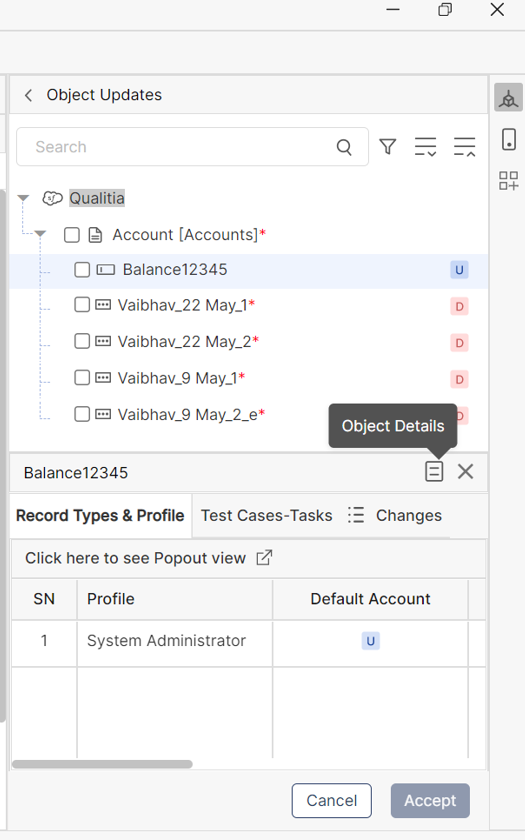
-
-
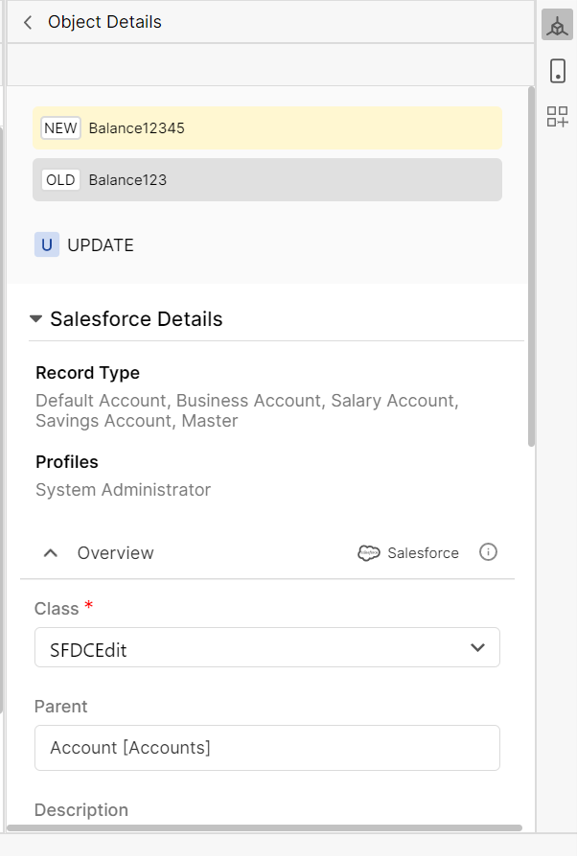
You can also view all the chnages and details of the object by clicking Object Details, as shown in the previous screenshot.
-
Select the objects for which you want to accept the changes. Check boxes are available next to each object and field for selection.
Note: The Accept button is disabled until at least one item is selected. -
You can also use the Search bar to locate specific objects, or Apply filters for New, Updated, or Deleted objects using checkboxes.
-
Once selected, a grid displays the field-level changes:
-
Field status per Record Type & Profiles.
-
-
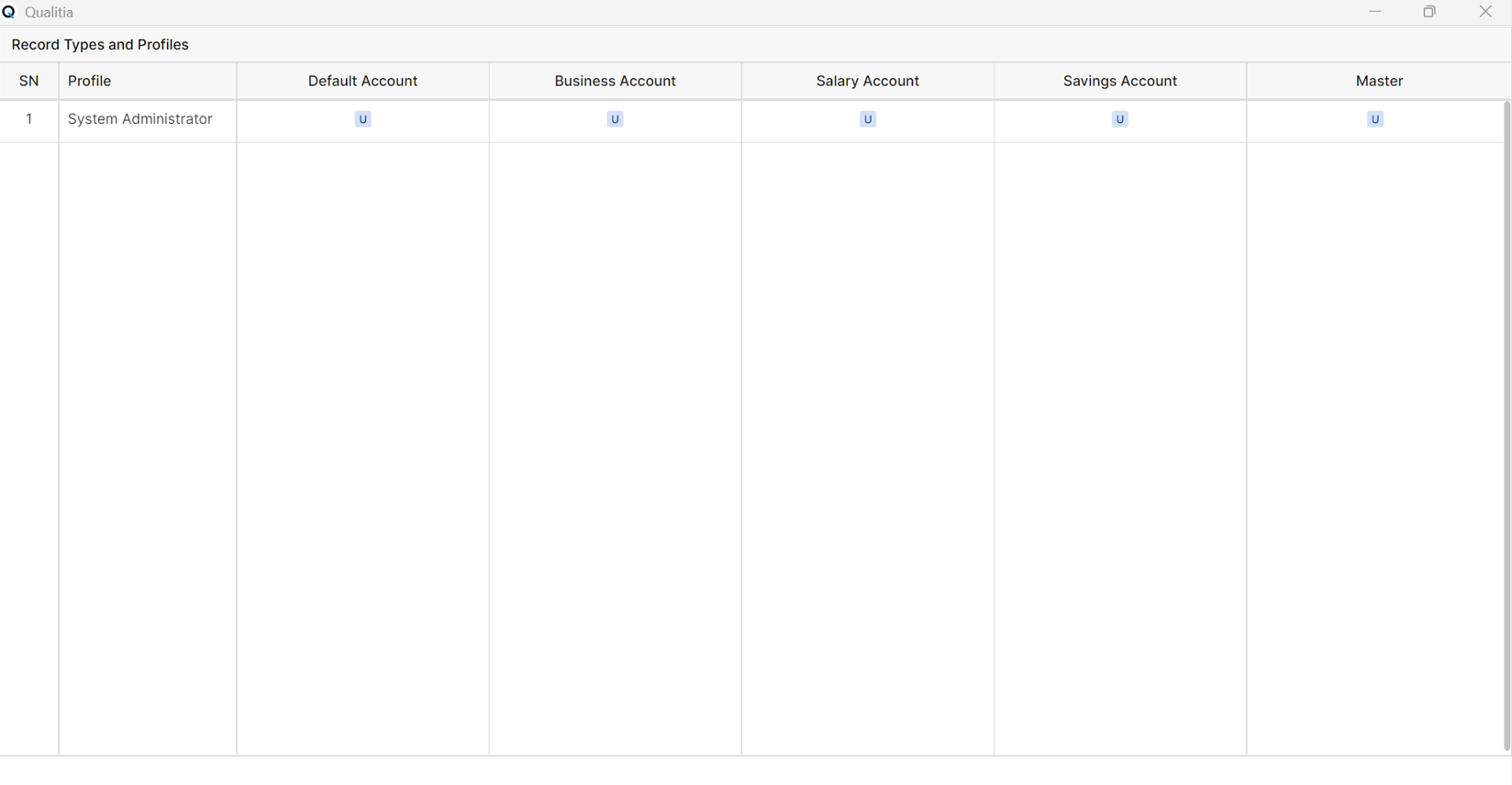
Click “Click here to see the pop-out view” or the pop-out icon.
-
A new window opens with:
-
Title: “Qualitia” (with icon)
-
Sub-title: “Record Types and Profiles”
-
Find and Filter icons beside the title
-
Tabular format showing SN, Profile, Field Names, Record Types
Note: Only one pop-out window is allowed at a time. Close it to return to the Develop tab.
-
-
Click Accept to accept the change; else, click Cancel.
-
When a Salesforce object is deleted and recreated with the same name without accepting changes through Change Management, a uniqueness conflict may occur. Since the label is used as the unique identifier for Salesforce objects, the new object will retain the same Object ID as the previously imported object in Qualitia, potentially leading to issues in object management and identification.
-
In Salesforce (SFDC) projects, when fields are updated (such as changing the name and label of the field) on the instance, they are incorrectly marked as 'New' in Change Management instead of being displayed as 'Updated'.
-
If a profile is cloned and a field is later updated in the original profile, the updated field may incorrectly appear as deleted in the cloned profile during change management.