
Enable OAuth and API Access for Salesforce Connected App
To establish a secure connection with Salesforce using the OAuth method, follow these steps to configure your Connected App with the required OAuth and API settings.
-
Available OAuth Scopes- https://help.salesforce.com/s/articleView?id=sf.remoteaccess_oauth_flows.htm&language=en_US&type=5
-
Primary and recommended one is full access.
-
Below are the pre-selected sections for O-Auth:
-
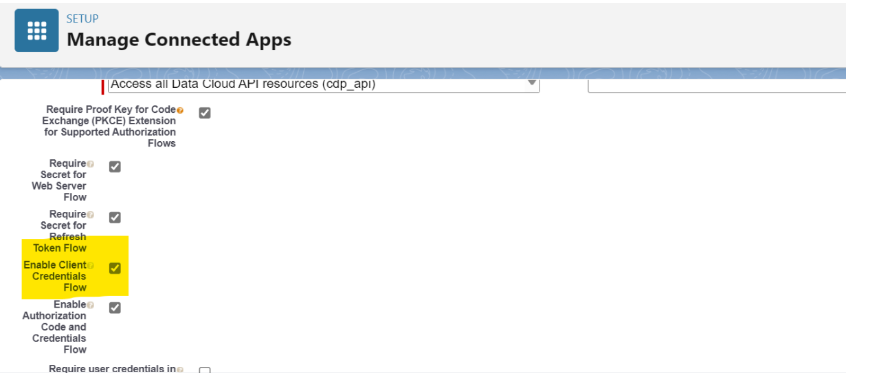
Require Proof Key for Code Exchange (PKCE) Extension for Supported Authorization Flows.
-
Require Secret for Web Server Flow.
-
Require Secret for Refresh Token Flow.
-
Issue JSON Web Token (JWT)-based access tokens for named users- this is not necessary, but it is advised to check this.
-
-
O-Auth recommended flow:
OAuth Endpoints (http://salesforce.com )
Enable OAuth and Client Credentials Flow
-
Go to Setup in Salesforce.
-
In the Quick Find box, search for and open App Manager.
-
Locate your Connected App, click the dropdown arrow, and select Edit.
-
Under the API (Enable OAuth Settings) section, check the following:
-
✅ Enable Client Credentials Flow
-
-
Review and accept the warning regarding security implications.
-
Click Save.
Assign an Execution User
The Client Credentials Flow does not involve user interaction. However, Salesforce requires you to specify an Execution User, who will be associated with the issued access tokens.
To set the Execution User:
-
In the Connected App detail page, click Manage.
-
Click Edit Policies.
-
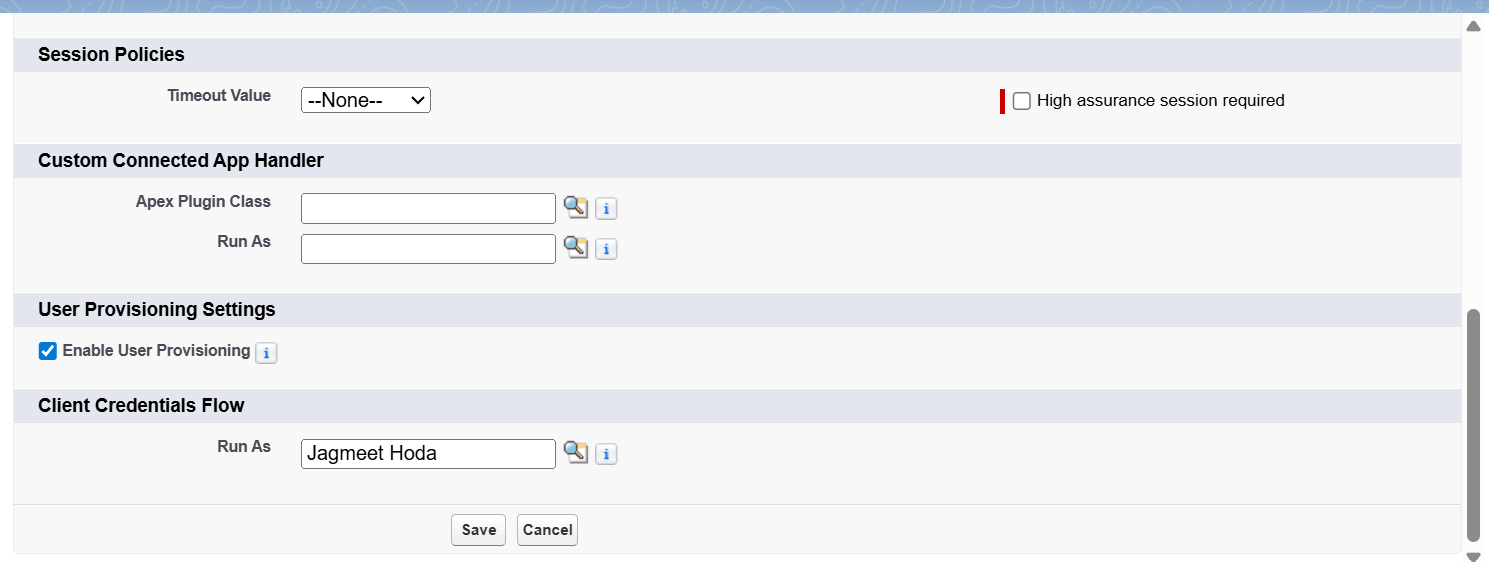
Under Client Credentials Flow, in the Run As field, click Search.
-
Select the user you want to assign as the execution user.
Recommendation: For Enterprise Edition, select a user who has the API Only User permission.
-
Ensure the Enable User Provisioning checkbox is selected.
This must always remain checked to allow proper access and token generation. -
Click Save to apply the changes.
“Permitted Users” settings such as All users may self-authorize or Admin approved users are pre-authorized do not apply to execution users in this flow.