
Qualitia uses third-party software components, which needs to be downloaded separately for successful mobile test automation.
In order to prepare your Mac for mobile automation testing, you need to download and install Appium and Xcode.
Download and Install Xcode
Xcode is an integrated development environment (IDE) for macOS containing a suite of software development tools developed by Apple. Xcode helps in creating a set of virtual devices for mobile application testing.
-
Download and install the latest version of Xcode (from the app store).
Download Simulators
You need to download the required simulators if you want to execute test cases on simulators.
To download simulators:
-
Launch Xcode and navigate to Xcode > Preferences.
-
Select Components from the top.
All the available simulators are listed here. -
Select one or more simulators from the list to download.
A pop-up appears asking password. -
Enter Password and then click Install Software.
Install and Configure Appium Dependencies for iOS Physical Device on Mac
In order to prepare your Mac for automating test cases on iOS physical device, please install following components using terminal after you have downloaded Appium Desktop and Xcode.
For automating test cases on simulators, you do not need to download and install these components.
For more information on these dependencies, GitHub or Appium documentation.
-
Install Homebrew, if not present.
-
Install Node js, if not present.
-
Install appium from NPM.
-
Launch terminal and install packages using the following commands:
-
Configure WebDriver Agent project using the following steps:
Turning on the Automation Support on Safari (Mac)
Enable the Develop Menu on Safari
The Develop menu can be turned on by following the steps mentioned below.
-
Launch the Safari browser.
-
Go to Safari > Preferences > Advanced.
-
Ensure that Show Develop menu check box is selected.
Enable Remote Automation in the Develop Menu
-
Launch the Safari browser.
-
Go to Develop > Allow Remote Automation.
Common Errors while Configuring Mac
You may face some issues while configuring Mac to execute Qualitia automated test cases. This section helps you to resolve the issues coming at the time of configuring Mac.
Requested 'libusbmuxd >= 1.1.0' but version of libusbmuxd is 1.0.10
To resolve this error:
Launch terminal and execute following commands one by one:
-
brew update
-
brew uninstall --ignore-dependencies libimobiledevice
-
brew uninstall --ignore-dependencies usbmuxd
-
brew install --HEAD usbmuxd
-
brew install --HEAD libimobiledevice
Error while building iOS Simulator
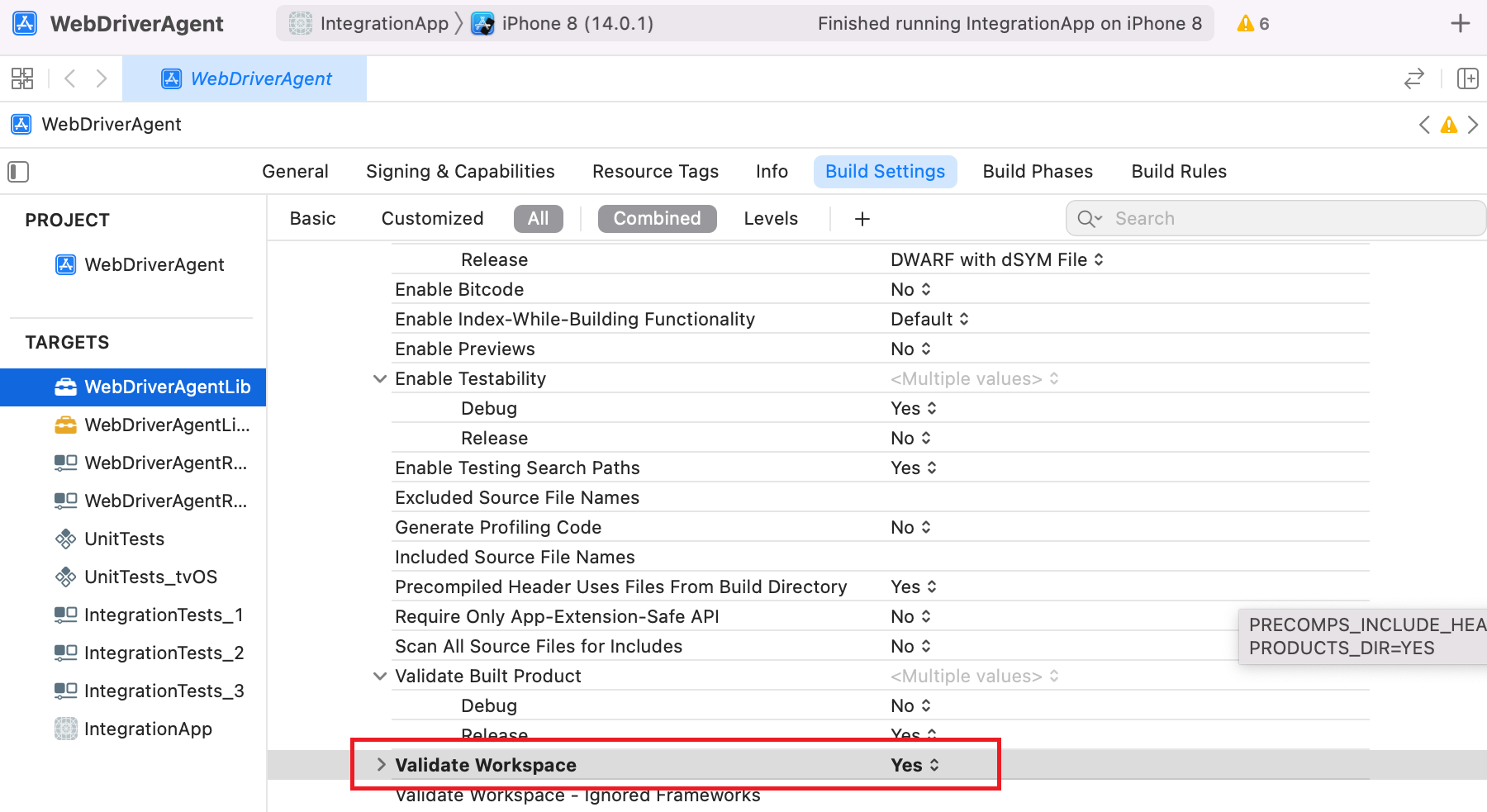
While building iOS Simulator, you may face the following error: Building for iOS Simulator, but the linked and embedded framework was built for iOS + iOS Simulator.
To resolve this error, set Validate Workspace to Yes in the Build Settings tab.
Error while brew install --HEAD usbmuxd
While executing the brew install --HEAD usbmuxd command from the list above, you may face the following error. This error appears due to compliance and IT policies of the organization.
fatal: unable to access 'https://git.sukimashita.com/libusbmuxd.git/': SSL certificate problem: self signed certificate in certificate chain
To resolve this error, ask IT team to unblock access to https://git.sukimashita.com/libusbmuxd.git
Error while xcpretty
While executing the gem install xcpretty command from the list above, you may face the following error.
ERROR: Could not find a valid gem 'xcpretty' (>= 0), here is why:
Unable to download data from https://rubygems.org/ - SSL_connect SYSCALL returned=5 errno=0 state=SSLv3 read server hello A (https://api.rubygems.org/specs.4.8.gz)
To resolve this error, ask IT team to unblock access to: https://rubygems.org/
Error: You don't have write permissions for the /Library/Ruby/Gems/2.3.0 directory.
To resolve this error, use sudo gem install xcpretty command.
Command CodeSign failed with a nonzero exit code
While building a webdriver agent project in Xcode, you may face this error.
To resolve this error,
-
Launch XCODE and navigate to Xcode > Preferences > Account .
-
Download all signing profiles manually one-by-one and reboot the system.
-
After reboot, launch Key Chain Access using application finder.
-
Navigate to the Certificate section and from the Trust section, mark all developer certificate as System defaults.
-
Rebuild the Xcode project.
Troubleshooting
You may face some issues while setting up the Mac for automation testing. You may refer to this troubleshooting section to resolve these issues.