Create Salesforce API Object
Create Salesforce API Object through Object Repository
To create SFDC API object follow the below steps:
-
Go to Object Repository.
-
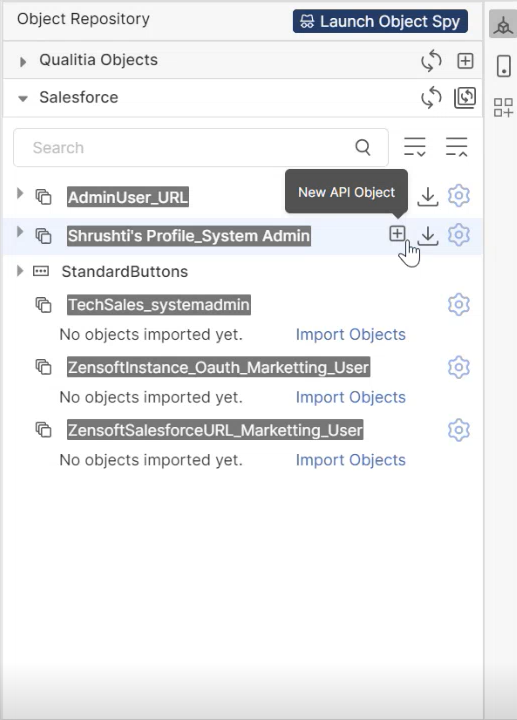
Click New API Object option for the connection as shown in the image below.
-
Clicking New API Object will open the Create Salesforce API Object screen.
-
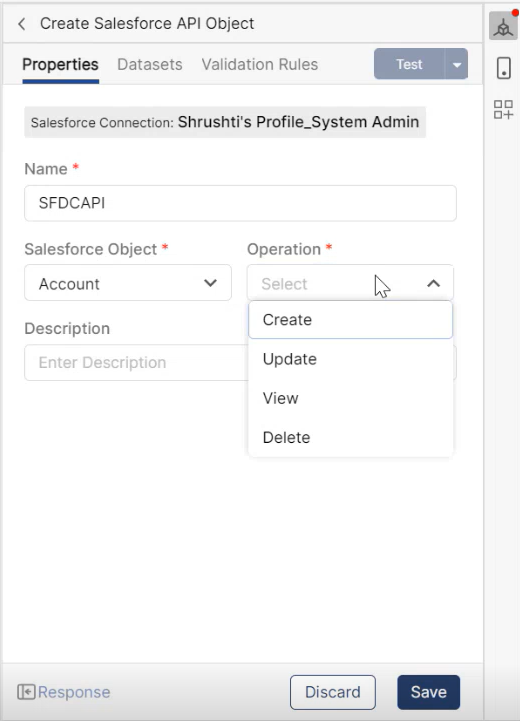
On the Create Salesforce API Object screen, on the Properties tab and enter the following details:
-
Name: Enter the API name.
-
Salesforce Object: Select the Salesforce object form the dropdown. You will see list of all the imported objects here.
-
Operation: Choose the operation you want to perform on the object.
-
Description: Add desired description for the API.
-
-
Once the Salesforce Object and Operation fields are selected, the Dataset and Validation Rules tabs will be enabled.
-
Now to perform the operation, you need to provide the dataset. Go to the Dataset tab and provide the details.
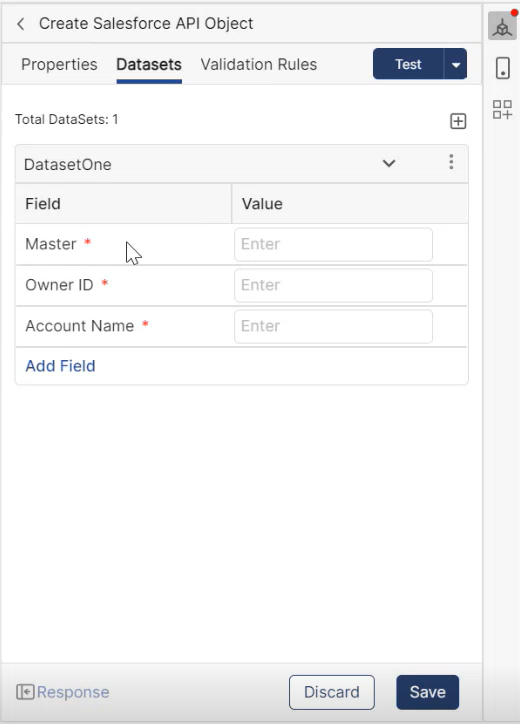
Note: All the mandatory fields (marked with asterisk) in the application will be fetched in default dataset. Dataset: 1 in the above image is the default dataset.
-
To add more dataset, click the + icon from the top-right corner.
-
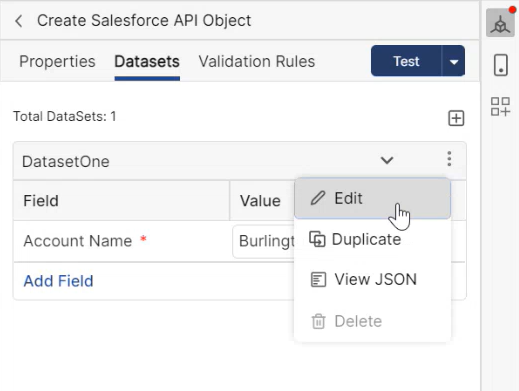
Click on the three dots to:
-
Edit: Edit the dataset.
-
Duplicate: Create duplicate dataset.
-
View JSON: View JSON for the dataset.
-
Delete: Delete the dataset, only if there are more than one dataset.
-
-
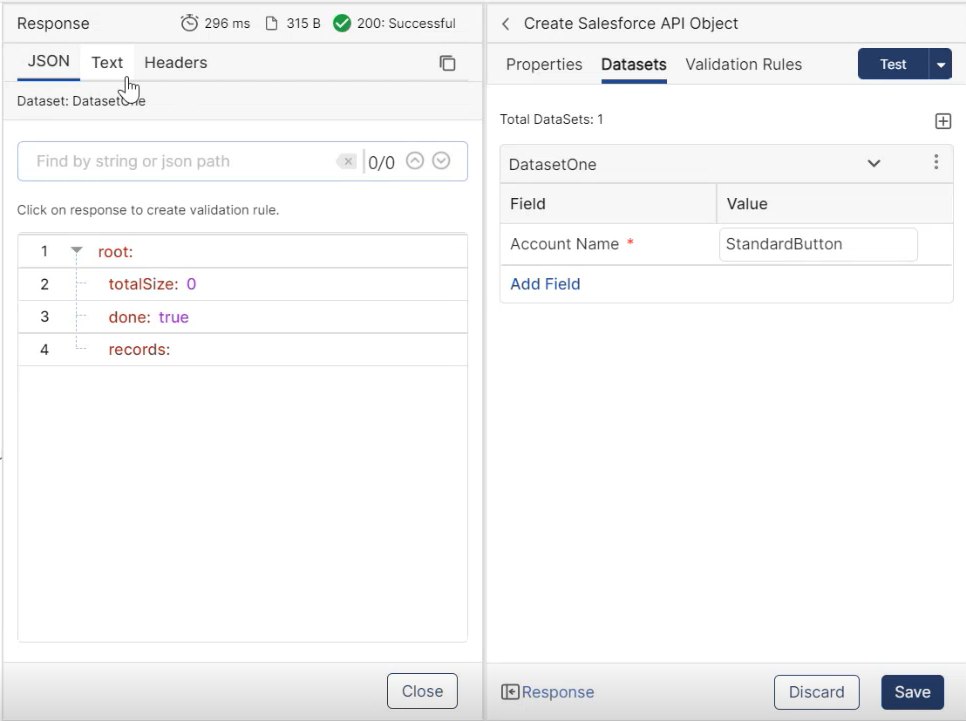
Click Test from the top-right corner to test the request.
-
Clicking Test will open a Response screen (as shown below), where you can view the test results. You can view the result in JSON or Text format.
-
You can also view the result on the Salesforce application. The data will be fetched, and a JSON will be created on the Salesforce application.
-
Click Validation Rules tab to create a validation rule for an object.
-
When no Validation Rule exist, you are prompted to Create a validation set.
-
You can also click + Create Validation Set from the top-right corner of the tabular section.
-
Clicking Create will open a Create Validation Set window with the following fields:
-
Name: Enter an intuitive name for the validation set that is easy to recognize.
Maximum length permitted is 300 characters including spaces. -
Description: A brief description about the suite.
-
-
Click Save to proceed; otherwise, click Cancel.
-
You can now add validation rules under the Validation Set.
-
Click Add Validation Rule from the validation set you created.
-
Clicking Add Validation Rule will open a Create Validation Rule window with the following fields:
-
Rule Name: Enter an intuitive name for the validation rule that is easy to recognize.
Maximum length permitted is 300 characters including spaces. -
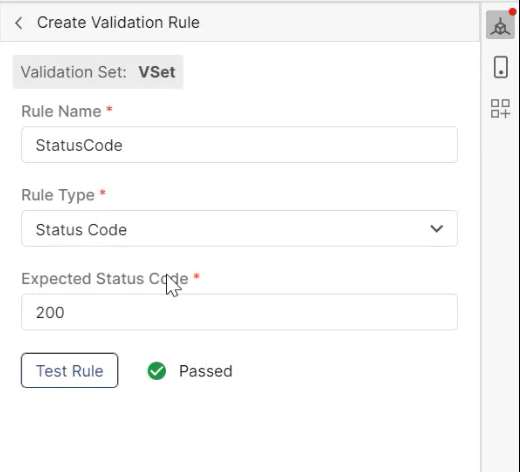
Rule Type: You can select one of the three rule types.
-
Status Code: Select Status Code and provide the Expected Status Code to validate against it.
-
Response Time: Select Response Time and enter the Response Time Witnin to get the expected response in time. This value should be in milliseconds.
-
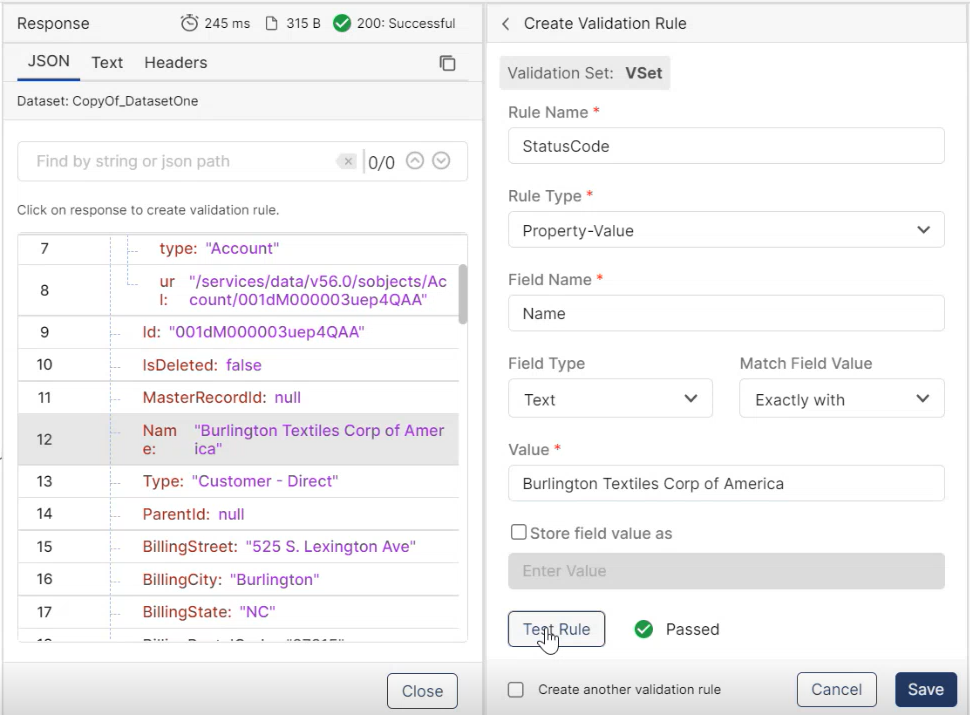
Property-Value: Selecting Property-Value will open few more fields:
-
Field Name: Enter the field name that is available for the object.
-
Field Type: Select the field type from the dropdown, Text, Boolean, or Integer.
-
Match Field Value: Select Exact Match or Contains from the dropdown as per your requirement. Exact Match will look for the same field value provided.
-
Value: Enter the field value you want to be in your response.
-
-
-
-
-
Click on the three dots to:
-
Edit: Edit the validation set.
-
Clone: Create duplicate validation set.
-
Delete: Delete the validation set.
-
-
Click Test Rule to validate the created rules.
-
Create Salesforce API Object through Test Case Editor
-
Login to QAS - Client.
-
Access Develop from left navigation to view Test Explorer screen.
-
On the Explorer section, you can view existing Test Scenarios.
-
-
Click the Expand option on a test scenario, where you can view all its test cases.
-
Select a test case.
-
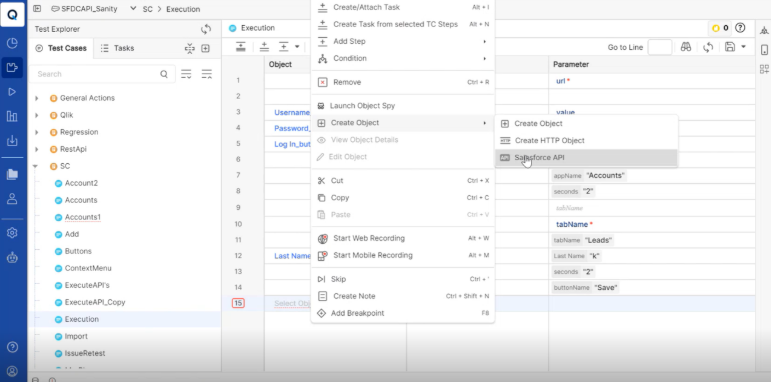
Right-click on the test case and hover over Create Object.
-
Click Salesforce API, it will open Create Salesforce API Object screen.
-
Follow steps 4 to 12 from the previous section. https://qualitia.atlassian.net/wiki/spaces/QASNew/pages/edit-v2/34857453225#Create-Salesforce-API-Object-through-Object-Repository.