Whitelisting Recorder Browser Extension in Chrome
Qualitia Boson requires a Chrome extension to enable Recorder functionality. By default, Qualitia Boson automatically installs this extension at runtime. However, in environments where automatic extension installation is restricted by security policies, you can instead manually install the extension from the Chrome Web Store.
Default Port for Communication:
4518(configurable via Qualitia Boson settings)
This guide explains the installation method and provides detailed steps to whitelist the extension for specific Chrome profiles, ensuring proper functionality in controlled or multi-profile setups.
Chrome Extension Installation and Configuration
Qualitia Boson supports the following methods for installing and managing the required Chrome extension:
Chrome Web Store Installation with Static Port (Manual Installation)
In this method, users install the extension from the Chrome Web Store and configure it manually in Qualitia Boson using a predefined static port.
🔹 Key Characteristics:
The extension remains persistently installed across sessions.
Requires user setup within Qualitia Boson, including port and profile configuration.

Recommended for secure environments or CI/CD pipelines.
You can manage and control the extension version.

Ensure the communication port (default: 4518) is open and accessible.
Install the Recorder Extension
Launch the Recorder from Qualitia Boson.
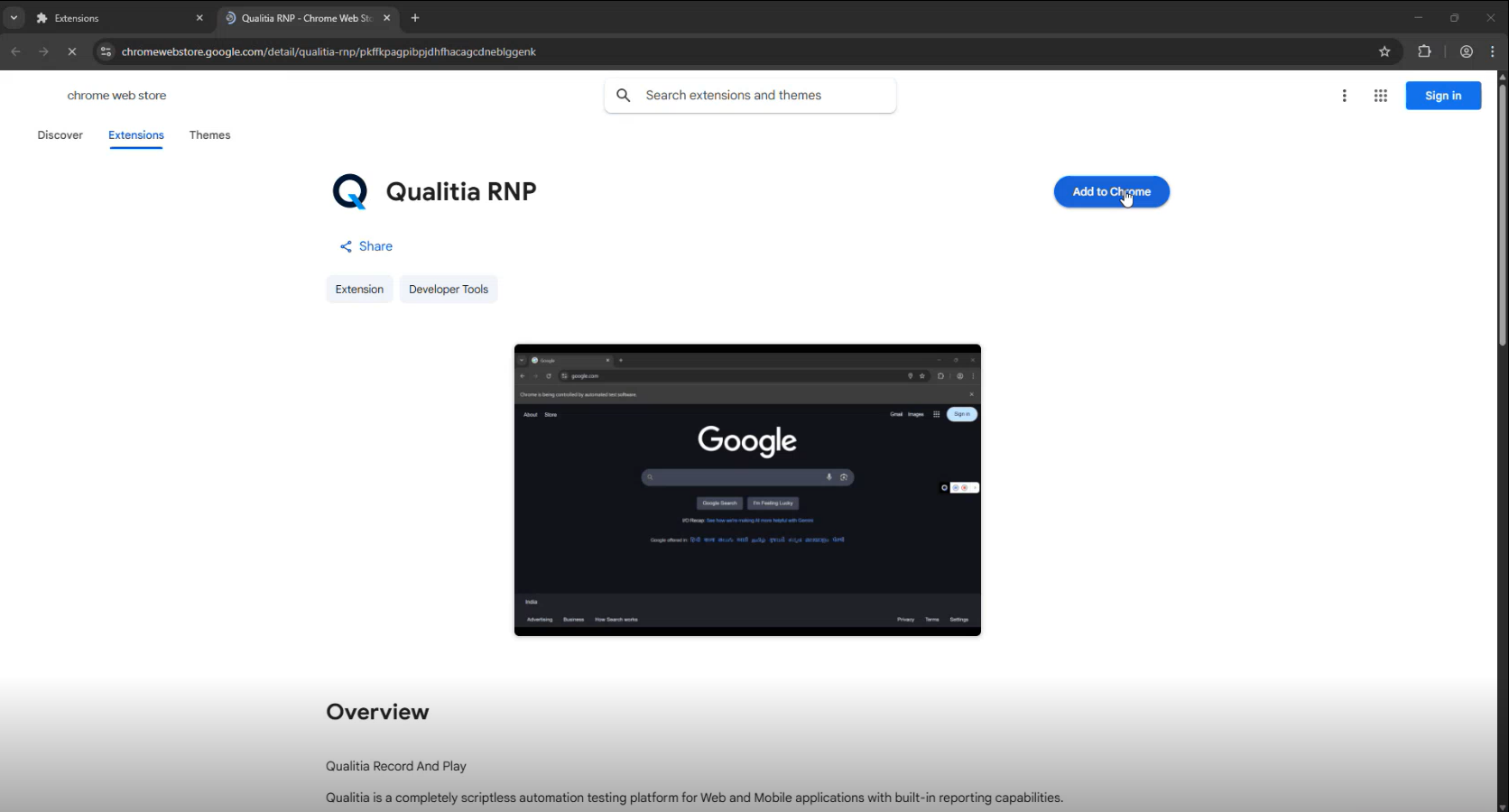
A notification appears indicating that the Qualitia Recorder Chrome extension is available, along with a link to the Chrome Web Store.
Click Add Extension to install the extension from the Chrome Web Store.
After installation, the extension may not function immediately until the required browser permission is enabled.
One-Time Extension Configuration
Open Chrome Extensions (
chrome://extensions).Locate the Qualitia Recorder Extension.
Click Details.
Enable Allow access to file URLs.
This is a one-time configuration. Once enabled, the Recorder and Object Spy will load and function correctly in all future sessions.
Whitelisting the Extension for a Specific Chrome Profile
When using multiple Chrome profiles (e.g., Default, Test Profile 3), ensure the extension is installed in the target profile and correctly configured in Qualitia Boson.
🔧 Steps to Whitelist the Extension
1. Install the Extension in the Required Profile
Open Chrome and switch to or create the required profile.
Install the Qualitia Boson Recorder extension from the Chrome Web Store.
2. Copy Chrome User Data to a Non-System Folder
Navigate to the Chrome user data folder:
C:\Users\<YourUsername>\AppData\Local\Google\Chrome\User DataCopy the Profile folder to a non-system location:
D:\UserData\Test Profile 3
This avoids permission issues when referencing system folders.
3. Identify the Profile Folder Name
Inside the copied
User Datafolder, locate the fileLocal State.Open
Local Statein a text/code editor and search for your Crome profile name (e.g., Test Profile 3)Note the corresponding internal profile name (e.g.,
Profile 3).
4. Configure the Profile in Qualitia Boson
Log in to Qualitia Boson - Client.
Access Settings from left navigation.
Click Recorder Configuration to open the Recorder Configuration settings screen.
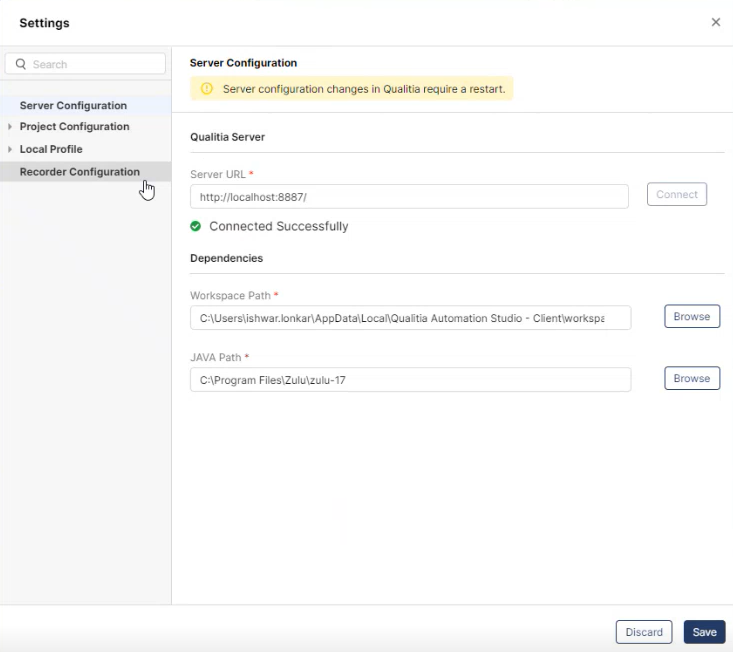
On the Recorder Configuration screen, update the following fields:
Web Recorder Port: This field contains a prefilled port number 4518. You can change the port number if needed.
User Data Directory: Click Browse next to User Data Directory and select
D:\UserData.Profile Directory: Enter the internal profile name identified earlier (e.g.,
Profile 3).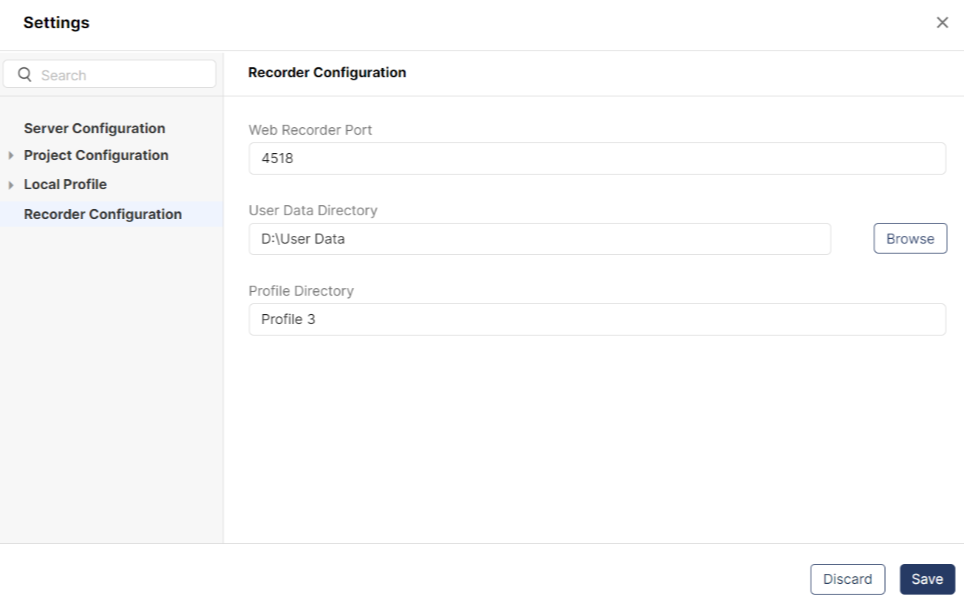
Click Save to apply changes; otherwise, click Discard.
5. Launch Recorder and Connect to Port
Launch Recorder from Qualitia Boson - Client.
Chrome will launch using the configured profile.
Manually click the Qualitia Boson extension icon in the Chrome toolbar.
In the popup:
Enter the configured port number (default: 4518).
Click Connect to Port.
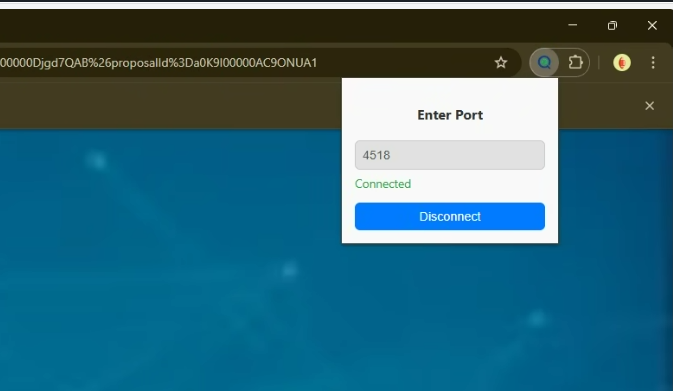
✅ Once connected, the recorder strap will appear, and the browser is ready for recording.
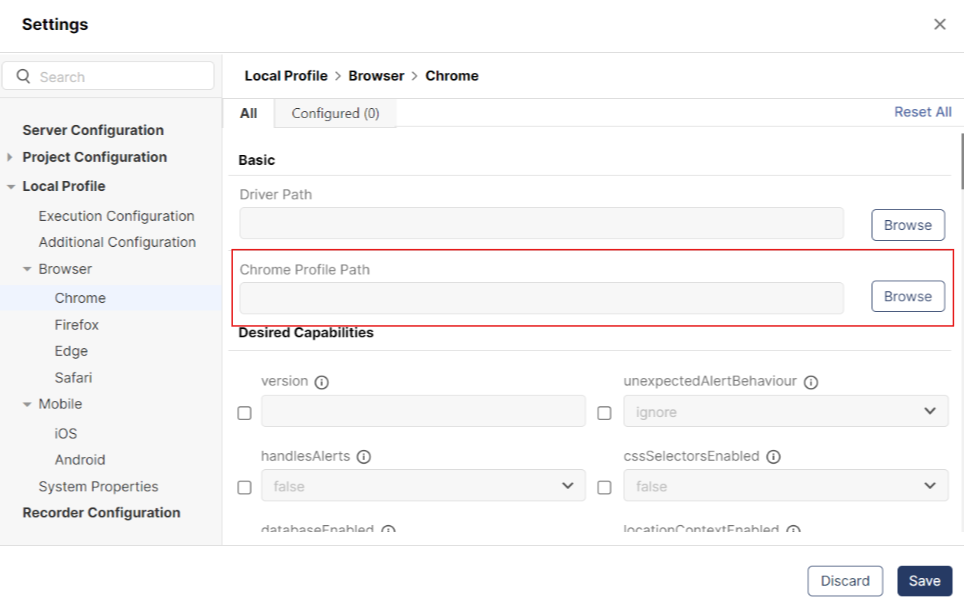
Updating Crome Profile Path for Execution
Log in to Qualitia Boson - Client.
Access Settings from left navigation.
Go to Local Profile > Browser > Crome.
Add the Crome Profile Path as:
D:\Qualitia\ChromeProfiles\UserData\Test Profile 3