
Locator Priority Settings for Mobile Object Spy
The default sequence for Mobile Object Spy for a native application is as follows:
-
UiAutomator
-
ID
-
Accessibility ID
-
Class
-
XPath
For a web application, the default sequence is:
-
Link
-
Name
-
ID
-
XPath
-
CSS
Feel free to adjust this sequence to suit your testing needs.
Launching a Mobile Device and Application Under Test
Launching Devices Once you're signed into Mobile Object Spy, you can select a device from available list to launch and add objects from the application under test. Mobile Object Spy displays all devices, including real devices, emulators, and simulators.
💡It's generally recommended to use a single simulator/emulator per agent while working with Mobile Object Spy. However, you can simultaneously use multiple real devices without issue.
To launch a mobile device, follow these steps:
-
Login into your Qualitia Boson - Client.
-
Access Develop from the left navigation menu.
-
You can automate a test case or a task using the Mobile Object Spy. In case of a
-
Test Case
-
On the Explorer section, you can view existing Test Scenarios.
-
Select a Test Scenario and click the Expand option.
-
-
Tasks
-
On the Explorer section, click Tasks.
-
Select a Task and you can view its test cases.
-
-
-
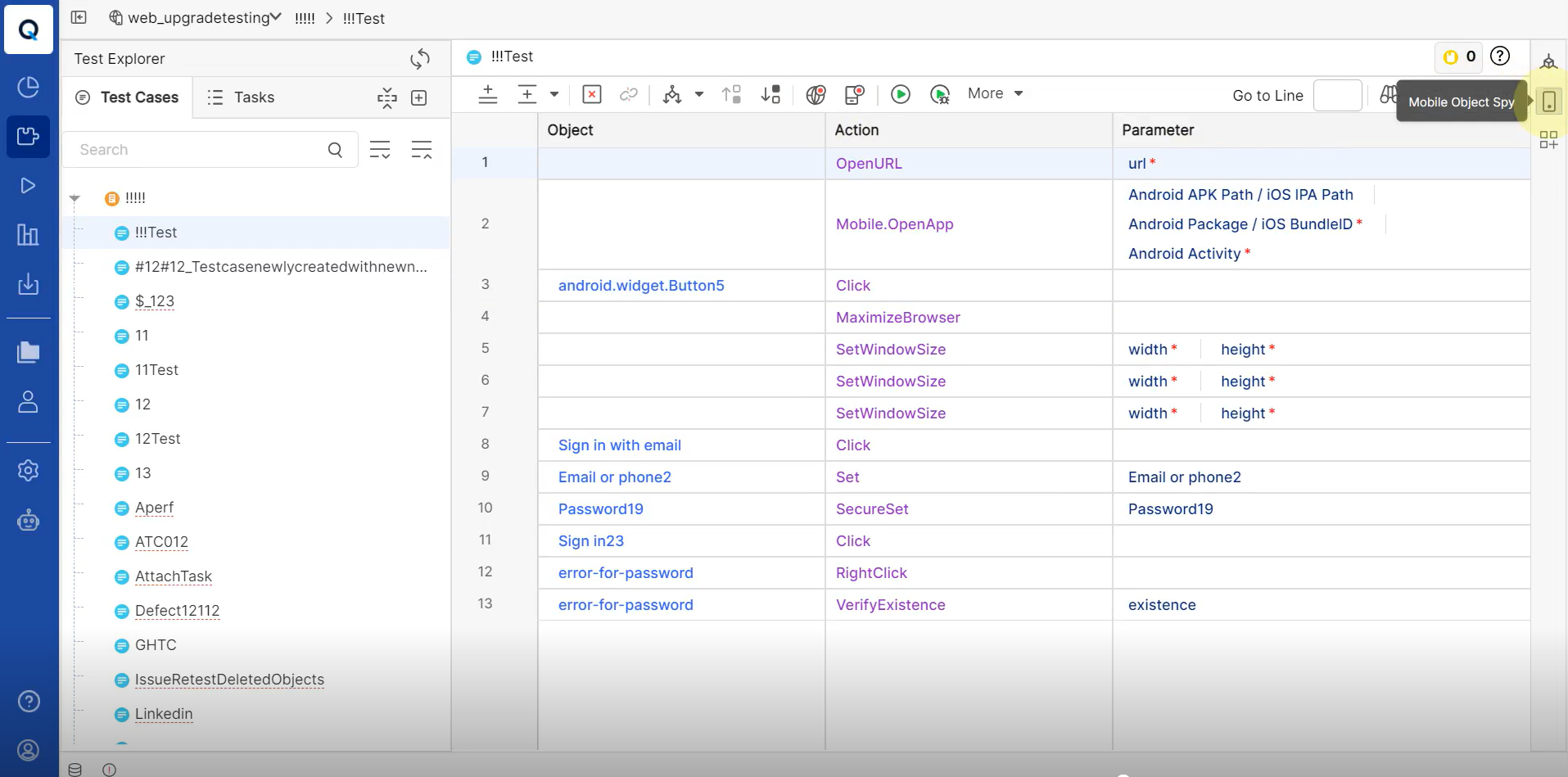
Click Mobile Object Spy icon located in the right-hand.
-
Clicking Mobile Object Spy will open a screen with a message Checking pre-requisites for automating mobile. If the pre-requisites are not available, it will ask you to update and try again. Refer Mobile Configuration - Help Center - Confluence to get your machine mobile ready.
Note: Checking pre-requisites will take time the first time.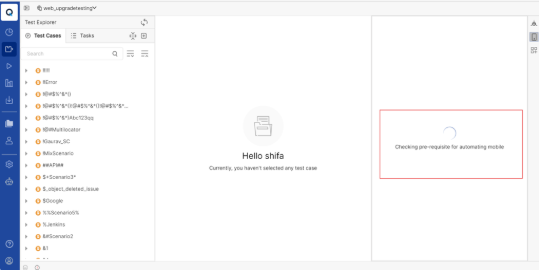
-
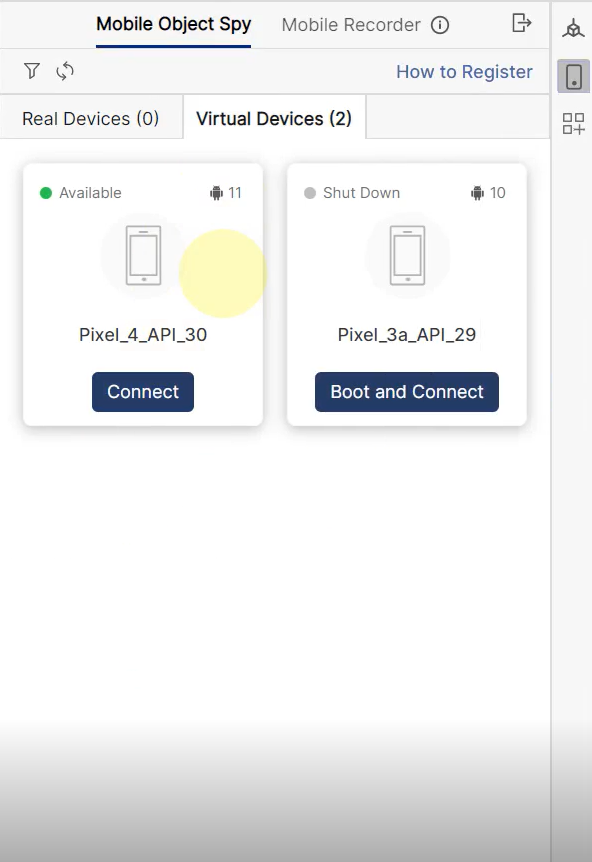
Once the pre-requisites are verified, you will see all the installed devices. Select the device and click Boot & Connect.
-
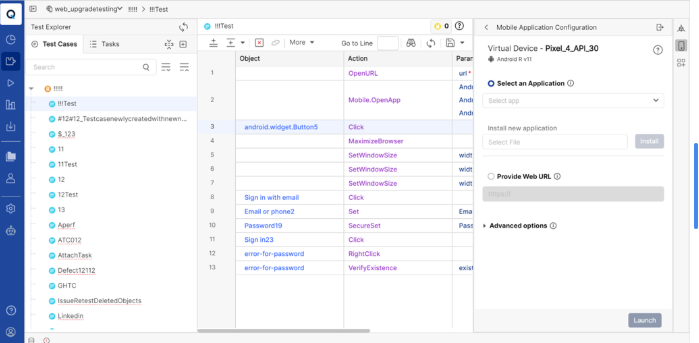
This will open the Emulator and the Mobile Application Configuration screen with the following fields:
-
Select an Application: To launch an already installed application, select it from the dropdown list.
-
Install new application: To install an application, select the .apk file from your local directory and click Install. It will be added to the Select an Application dropdown list.
-
Provide Web URL: To add objects from web, input the Web URL.
-
Advanced options: To add capabilities, select a capability from the dropdown.
-
-
Click Launch to launch the device.
-
While the application is launching, you will see two screens:
-
Virtual Device: Displays the virtual device.
-
Learned Objects: Lists all the recorded objects.
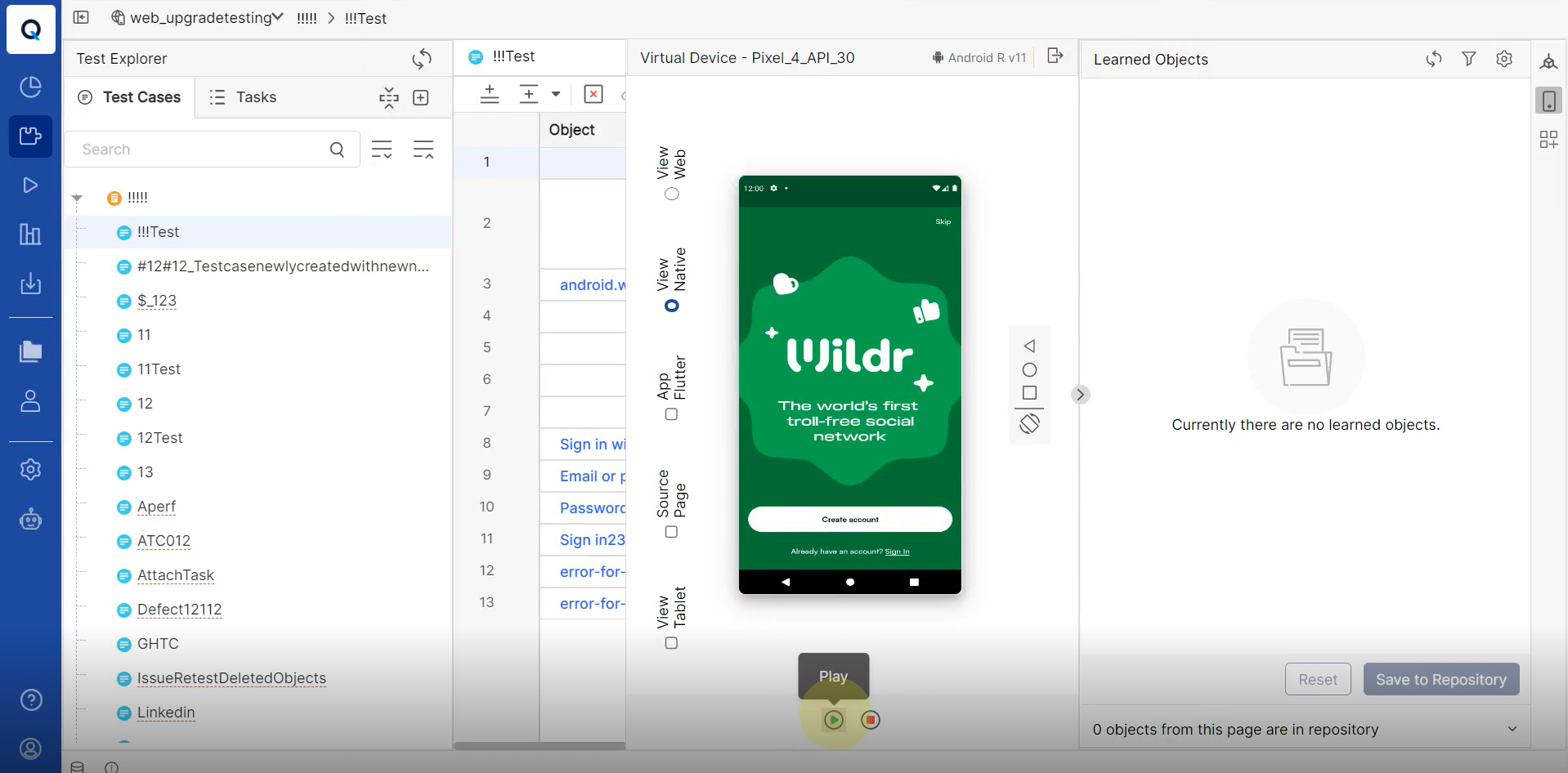
-
-
Once the application launches, you can:
-
Pause Recording: Temporarily halt the recording session.
-
Stop Recording: End the recording and close the browser session.
-
-
The Learning Objects displays all the objects that are been captured. Hover over the object to view the Edit, Delete, and Highlight options.
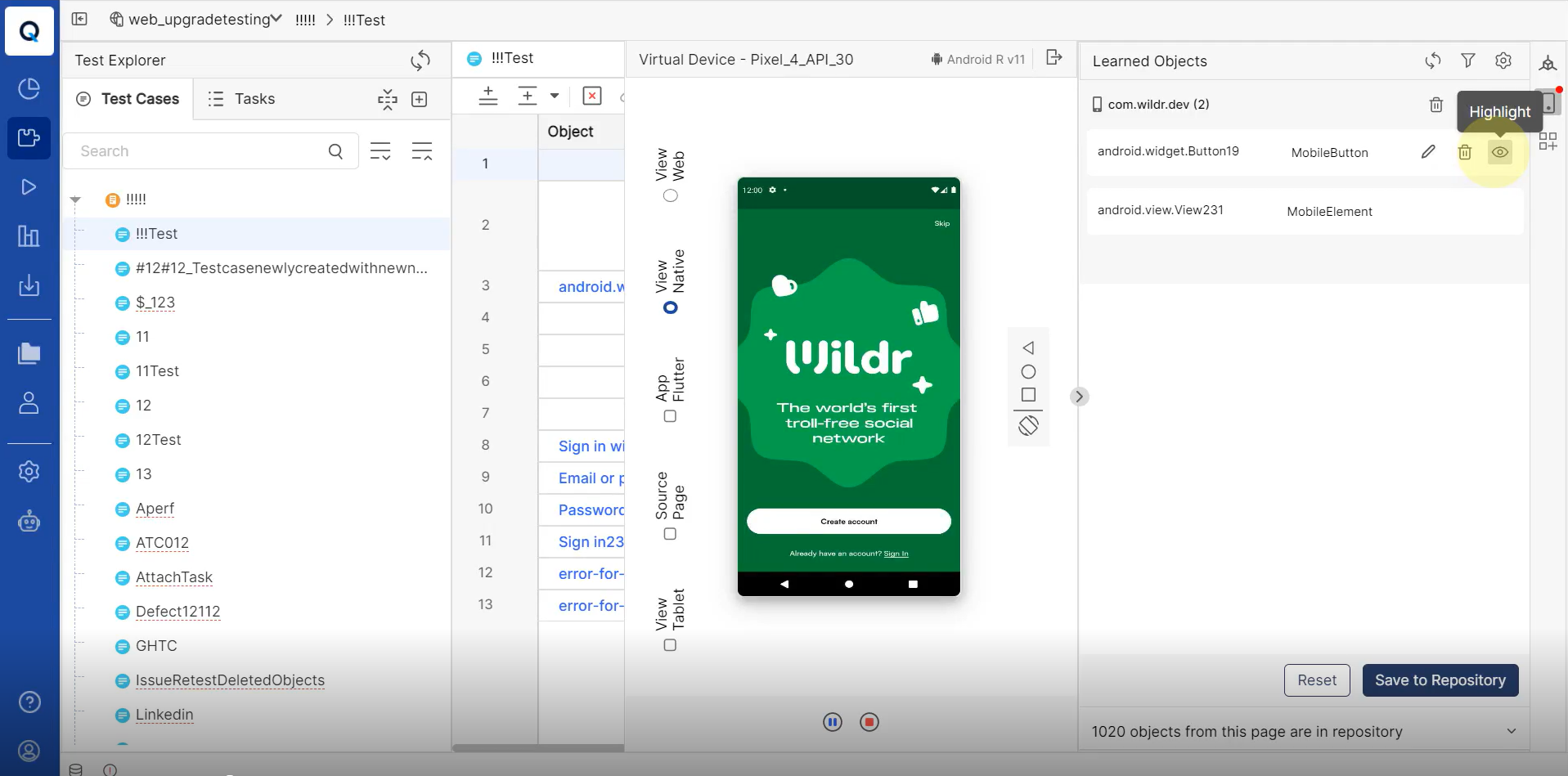
-
Click Save to Repository to save the objects in the object repository; else, click Reset to delete all the recorded objects.
-
Ensure that the default browser on the real device is set to Google Chrome. Bear in mind that one mobile device can only be accessed by one user at a time. If a device is currently being used by another user, its status will be displayed as Busy.
Launching or Installing an Application Under Test
After launching the Mobile Object Spy and connecting to the desired real device or emulator/simulator, you can start adding objects from the application under test.
You first need to launch or install the application under test on the mobile device from which you intend to add new objects. Qualitia provides a facility to install the application under test directly from the Mobile Object Spy.
To launch an application under test, follow these steps:
-
On Mobile Object Spy, connect to the desired device.
-
You have three options for launching an application:
-
To launch an already installed application, select it from the dropdown list.
-
To install an application, select the .app, .ipa or .apk file from your local directory and click Install.
-
To add objects from web, input the Web URL.
-
-
Click Launch to start the application.