
Qualitia Boson allows you to publish the test cases to the repository before the schedular execution. The Publish feature allows users to continue the test case development without impacting the schedular execution. It differentiates the development state and execution state of a project.
It is mandatory to publish a test case before the schedular execution. If the test cases are not published, you won’t be able to perform the executions.
📚Prerequisites
-
Familiarity with the application you're testing.
-
Access to Qualitia Boson Client.
-
Basic understanding of test cases.
-
Availability of existing test cases
-
Privileges to execute Tests.
To publish a Test Case:
-
Login to Qualitia Boson - Client.
-
Create a project as well as the scenarios and test cases under the project. For detailed information on how to create scenarios and test cases refer to Scenarios and Test Cases.
-
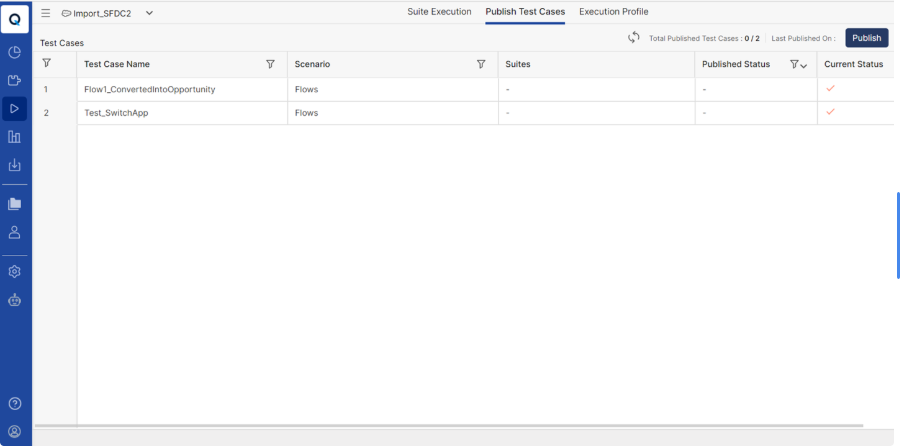
Once the scenarios and test cases are developed, access Execute from the left navigation to view the Publish Test Cases screen.
-
Click Publish Test Cases tab from the top navigation bar to view the test cases.
-
On the Publish Test Cases tab you can view:
-
Test Case Name - You can view the test case names in this column.
-
Scenario - You can view the scenario names for the test cases.
-
Suites - You can view the suite names in this column.
-
Published Status - You will see a green check mark
for the published rows. You can also use the filter next to Published Status and select All, - Never published,
-
Current Status - The status for particular test case will be shown in this column. You can see a red check mark ✔️ for Ready to publish test cases. You can also use the filter next to Current Status and select All, - ✔️ Ready to publish, ❌ With errors, and
-
-
Click Publish to publish all the test cases. You can view the number of published test cases and the last published date and time next to Publish.
-
Clicking on Publish will open the Publish Test Case window.
-
On the Publish Test Case window, you can view Total Test Cases and the test cases that are Ready for Publish and Having Errors.
Note: Test cases with errors will remain in an unpublished state.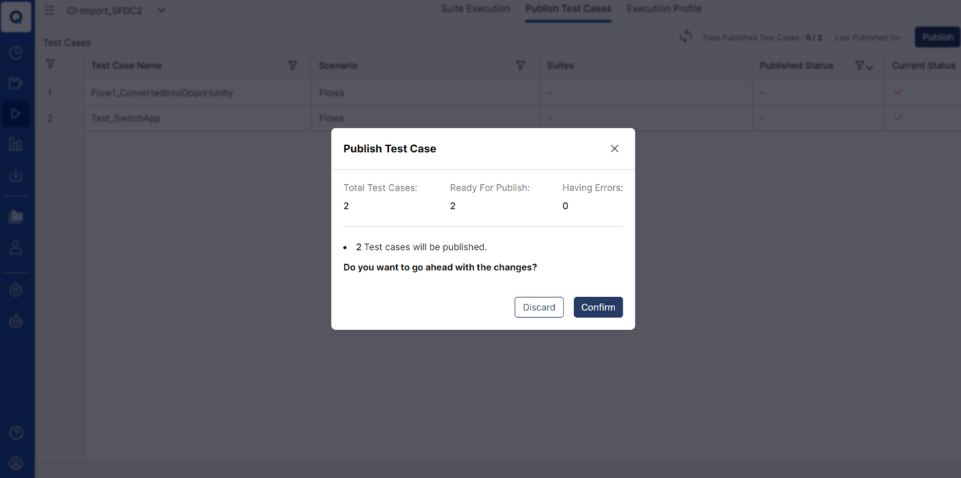
-
Click Confirm to continue; otherwise, click Discard.
-
The test cases have been published successfully.
If the test case is modified or updated after publishing, you have to publish it once again before execution. You can see if the test case needs to be republished under Current Status.
📞📚 Here to Help: Support and Resources
If you have questions that are not addressed in the documentation, you may raise them in the Qualitia Community.